

Choosing a mechanical keyboard under $100 can mean deciding between quieter linear switches and tactile, clicky keys, while also considering gaming controls and desk comfort. This guide compares two gaming keyboards by switch design, customization, media controls, and ergonomics so you can identify which features fit your routine.

Pros
- Six dedicated programmable macro keys
- Built-in switch sound dampeners
- Roller and secondary media keys
- Customizable per-key RGB lighting
Cons
- Skip it if you prefer tactile or clicky switches
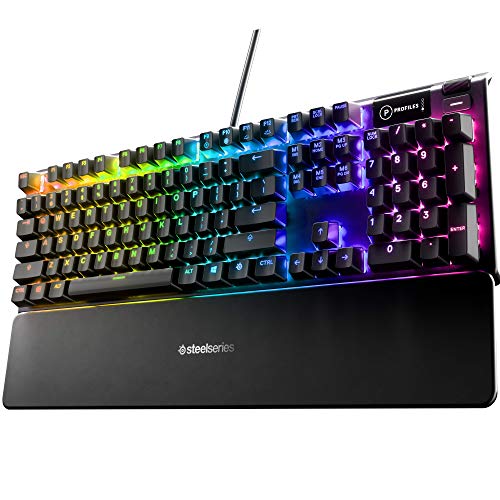
Pros
- Tactile, clicky hybrid switches
- Customizable OLED display
- Per-key RGB lighting
- Magnetic wrist rest included
Cons
- Clicky switches may be noisy in shared spaces
- Who should skip it: users seeking quiet switches
The Best Mechanical Keyboards by Use Case
Best for Quiet, Fast Inputs: Razer BlackWidow V4 X Mechanical Gaming Keyboard
The Razer BlackWidow V4 X Mechanical Gaming Keyboard suits players who want linear switches, dedicated macro keys, and quick access to media controls. The listing specifies Yellow switches with a 1.2 mm actuation point, 45 g actuation force, and built-in sound dampeners. Those details make it a reasonable fit if you prefer a smooth keypress and want a quieter switch design than a clicky option, though the listing does not provide measured sound levels.
Reasons to buy:
- Six dedicated macro keys can be programmed for commands used in games or other supported workflows.
- A multi-function roller and secondary media keys offer direct controls for playback, brightness, and volume.
- Per-key Chroma RGB lighting and doubleshot ABS keycaps add customization and legends molded through the keycap material.
Reasons to avoid:
- Linear switches do not provide the tactile click described for the SteelSeries hybrid blue switches, so they may not suit people who want audible, clicky feedback.
- The listing does not specify operating-system compatibility or keyboard dimensions, so check those details against your computer and desk before buying.
Skip it if you specifically want a clicky key feel or need a stated keyboard footprint before confirming desk fit.
Best for Clicky Feedback and Palm Support: SteelSeries USB Apex 5 Hybrid Mechanical
The SteelSeries USB Apex 5 Hybrid Mechanical is aimed at people who prefer tactile, clicky feedback and want a wrist rest included in the listed design. Its hybrid blue switches combine a mechanical click with a smooth membrane, and the listing specifies a 20-million-keypress rating. An OLED display supports custom graphics and information such as game details or Discord messages, giving this model a different kind of on-keyboard customization than the Razer’s dedicated macros.
Reasons to buy:
- The hybrid blue switch design provides the tactile click described in the listing for people who want audible key feedback.
- A magnetic wrist rest is included according to the product details, which may appeal to users who value palm support during desk use.
- The OLED smart display, per-key RGB lighting, and aircraft-grade aluminum alloy frame provide distinct customization and construction features.
Reasons to avoid:
- Clicky switches may be distracting in shared or quiet rooms; the listing does not provide a measured noise level.
- The listed footprint is about 35.43 by 11.81 inches, so confirm that this full-size desk area works for your setup.
Skip it if you need quieter linear keys, or if you do not have room for the stated footprint.
How to Choose the Best Mechanical Keyboard Under $100
The right choice depends less on a single headline feature than on how the keyboard will sound, feel, and fit into your everyday setup. Compare the switch description, desk footprint, connection details, and extra controls with the way you actually type or play.
1. Match switch feel to your room and typing style
Switch type affects both the feel under your fingers and the sound other people may hear. The Razer uses linear Yellow switches with built-in sound dampeners, while the SteelSeries uses hybrid blue switches described as tactile and clicky. If you share a workspace or often use a microphone nearby, the linear option may be a better starting point. If a noticeable click helps you enjoy typing, the SteelSeries may fit better.
Neither listing supplies a measured noise comparison, and sound can depend on the desk, room, and typing style. Treat terms such as “silent” or “clicky” as product descriptions, not a guarantee of a particular noise level. Check the switch variant shown on the listing before ordering, since keyboard models can be offered with different switches.
2. Consider actuation details for gaming and everyday typing
The Razer listing gives specific actuation figures for its Yellow switches: 1.2 mm and 45 g of force. It also describes the switches as having no distance between their actuation and reset points. Those figures may interest players who prioritize rapid, repeated inputs, but they do not establish that every player will perform better. The SteelSeries listing instead emphasizes tactile click and a 20-million-keypress rating for its hybrid switches.
Check which characteristics matter to your use. For fast game inputs, the Razer’s listed actuation details are relevant. For typing feedback, compare the switch descriptions and consider whether you want smooth linear travel or a clicky response. The published details do not give equivalent actuation figures for both keyboards, so avoid treating the two products as directly matched on that measurement.
3. Weigh dedicated controls against display features
Extra controls are useful only when they serve tasks you perform often. Razer provides six programmable macro keys plus a roller and secondary media keys for functions such as playback and volume. Those are concrete advantages if you want commands or common adjustments at your fingertips. The SteelSeries instead has an OLED display that can show custom graphics and information, including game details and Discord messages, according to its listing.
Before choosing based on software features, check the product listing for the details you need about setup, supported software, and compatibility with your computer. The listing information does not specify operating-system support or explain which features need particular software. Do not assume that a customizable display, macro key, or lighting effect will work with every application.
4. Check desk space and wrist support
Keyboard footprint matters when your mouse, monitor stand, or other desk items compete for space. The SteelSeries listing gives dimensions of about 35.43 by 11.81 inches and identifies a magnetic wrist rest. Confirm those measurements against your usable desk area, including space needed to move your mouse. The supplied Razer details do not include dimensions, so look them up on the current listing if precise fit matters.
A wrist rest can be a useful comfort feature, but its presence does not guarantee that its height or feel will suit you. Check what is included in the specific listing and whether the attachment style works for your preferences. If you already use a separate wrist rest, compare its height and placement with the keyboard before deciding whether the included one adds value.
5. Verify connection and computer compatibility
The SteelSeries product name identifies a USB keyboard, but the published product details do not state a connector type or supported operating systems. The provided Razer details also do not specify connection or compatibility information. Check the current product listing for the exact connector, any system requirements, and support for software features you plan to use.
Do not assume that a gaming keyboard’s lighting, OLED features, or programmable controls will behave identically across computers. If you need the keyboard for a console, work computer, or a particular operating system, confirm compatibility for that device and those features before purchase. For a broader explanation of switch and membrane designs, see our guide to mechanical versus membrane keyboards.
How We Compared
This comparison uses the published product specifications and design details, including switch descriptions, listed actuation figures, controls, lighting, construction, wrist support, and stated dimensions. We considered how those features may suit different typing environments and gaming routines. The supplied material includes no customer feedback, so this guide does not draw conclusions from buyer experiences. Where compatibility or connection information was not provided, the guide advises checking the current product listing rather than assuming support.
Frequently Asked Questions
Are linear switches quieter than clicky switches?
Linear switches do not have the tactile click described for the SteelSeries hybrid blue switches. The Razer listing also specifies built-in sound dampeners for its Yellow switches. These details make the Razer a reasonable option to consider in a shared space, but neither listing provides measured sound levels. Room acoustics and typing habits can also affect perceived noise.
Which keyboard suits someone who wants a clicky typing feel?
The SteelSeries uses hybrid blue switches described as providing tactile click. Choose it if that feedback is a priority and click noise is acceptable in your workspace. The Razer’s linear switches are the alternative if you prefer a smoother keypress rather than the stated clicky feel.
Can I use either keyboard with my computer or console?
The published details do not identify supported operating systems or console compatibility for either keyboard. The SteelSeries name says USB, but the listing information does not specify its connector details. Check the current listing for the exact connection and device support before buying, especially if you need console use or specific software features.
Do the macro keys and OLED display need software?
The Razer listing says its six macro keys can be programmed, and the SteelSeries listing describes a customizable OLED display. The published product details do not explain setup steps or software requirements. Check the manufacturer listing for instructions and operating-system support if programming or display customization is central to your decision.
Which keyboard is a better fit for a compact desk?
The SteelSeries listing gives a footprint of about 35.43 by 11.81 inches, so compare that area with your desk before choosing it. Dimensions for the Razer are not included in the published details, so check its current listing rather than assuming it is smaller. Leave room for mouse movement and other desk equipment when measuring.
Does RGB lighting mean the keyboards work with every game?
No. The Razer listing describes Chroma lighting effects for hundreds of integrated games, while the SteelSeries listing specifies dynamic per-key RGB illumination. Those descriptions do not establish support for every game or application. Check the relevant software and compatibility information if game-specific lighting is important to you.


Write Your Review
No reviews yet. Be the first to share your experience!