

A fast monitor can make competitive games feel more fluid, while a higher-resolution or ultrawide screen can give single-player games more detail and space. Finding the best gaming monitor under $300 means deciding which of those benefits matters most, then checking that your graphics card, console, and desk can support your choice.
This guide compares seven monitors by their listed resolution, refresh rate, panel type, screen shape, and ergonomic features. Use the specifications to narrow your options, and confirm connection and refresh-rate support for your specific computer or console before buying.

Pros
- 34-inch WQHD ultrawide display
- 1000R curved screen
- 165Hz refresh rate
- FreeSync Premium support
Cons
- Skip if you prefer a flat, standard-width display
Pros
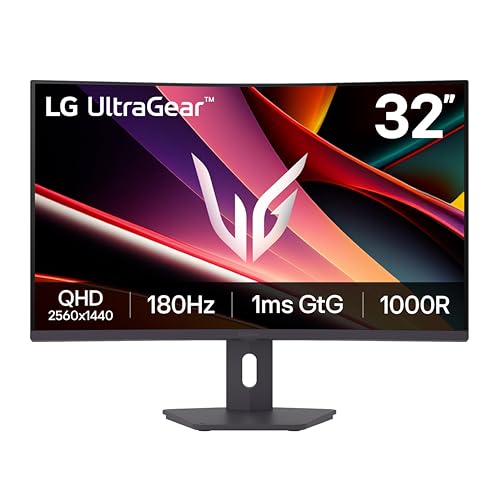
- 32-inch QHD curved display
- 180Hz refresh rate
- Height, tilt, and swivel adjustments
- AMD FreeSync support
Cons
- Who should skip it: users who prefer flat displays

Pros
- 34-inch UWQHD display
- 200Hz refresh rate
- 1500R curved screen
- AMD FreeSync Premium
Cons
- VGA may not suit newer devices
- Who should skip it: buyers needing documented HDR performance

Pros
- 4K IPS display with 99% sRGB
- Refresh rate up to 120Hz
- Height-adjustable stand with swivel and pivot
Cons
- Port versions and USB-C capabilities are unspecified
- Who should skip it: buyers needing detailed port specifications

Pros
- 34-inch curved WQHD display
- 165Hz refresh rate
- Height-adjustable stand
- Four video inputs
Cons
- Wide 31.85-inch body needs substantial desk space
- Who should skip it: buyers with limited desk space

Pros
- 27-inch QHD Fast IPS display
- 300Hz refresh rate
- ELMB Sync motion features
- Built-in speakers
Cons
- Console refresh-rate support not specified
- Who should skip it: shoppers needing confirmed port details

Pros
- 2560 x 1440 resolution
- Up to 280Hz refresh rate
- AMD FreeSync Premium and VESA AdaptiveSync
- 93% DCI-P3 color coverage
Cons
- Who should skip it: shoppers who do not need high-refresh QHD gaming
The Best Gaming Monitors by Use Case
Best for Competitive PC Gaming: ASUS TUF Gaming VG27AQM5A 27 Inch 1440p 300Hz
The ASUS TUF Gaming VG27AQM5A 27 Inch 1440p 300Hz pairs a 27-inch QHD Fast IPS panel with a listed refresh rate of up to 300Hz. Its 0.3ms minimum GtG response-time specification and ELMB Sync support suit players prioritizing fast motion and variable refresh rate features. The listing also specifies 95% DCI-P3 coverage, built-in speakers, and a three-year manufacturer warranty. Browse more gaming gear if you are building a full setup.
Reasons to buy:
- 300Hz maximum refresh rate for systems and games capable of producing high frame rates.
- Fast IPS panel and QHD resolution combine wide viewing angles with detailed images.
- ELMB Sync is specified to work with variable-refresh-rate technology, while Shadow Boost can brighten dark areas.
Reasons to avoid:
- A 300Hz screen benefits most when your PC can render very high frame rates; the monitor alone cannot create them.
- Confirm supported refresh rates and adaptive-sync behavior for your chosen input and graphics card.
Skip it if you mainly play slower games or want a larger ultrawide display rather than a high-refresh 27-inch screen.
Best for a Large Curved Screen: LG 32G600A-B 32-inch Ultragear QHD (2560 x 1440)
The LG 32G600A-B 32-inch Ultragear QHD (2560 x 1440) puts QHD resolution on a 32-inch curved display, giving games and desktop windows more physical screen area than a 27-inch model. Its listing specifies a 1000R curve, 180Hz refresh rate, 1ms GtG response time, AMD FreeSync, and up to 99% sRGB color coverage. The stand supports height, tilt, and swivel adjustments, a practical advantage if you share the screen between gaming and desk work.
Reasons to buy:
- Large, curved 32-inch screen offers an immersive view for games and room for multitasking.
- 180Hz refresh rate and listed 1ms GtG response time target fluid motion.
- Height, tilt, and swivel adjustments provide more positioning options than a tilt-only stand.
Reasons to avoid:
- QHD resolution spread across 32 inches has lower pixel density than the same resolution on a smaller screen.
- The 1000R curve and large footprint may not suit a shallow desk or precision work with straight lines.
Skip it if you want a compact flat monitor or prioritize the sharper pixel density of a smaller QHD panel.
Best for High-Refresh Ultrawide Gaming: msi MAG 346CQDF E20 34-inch 3440 x 1440 (UWQHD)
The msi MAG 346CQDF E20 34-inch 3440 x 1440 (UWQHD) combines a 34-inch, 21:9-class ultrawide resolution with a listed 200Hz refresh rate and 1500R curve. Its product details specify AMD FreeSync Premium and a 0.5ms response-time claim, along with HDMI, VGA, VESA mounting support, and tilt adjustment. That makes it a potential fit for PC players who want a wider field of view and a refresh rate above the 165Hz class, but the graphics card must also handle the additional pixels.
Reasons to buy:
- 3440 x 1440 ultrawide resolution gives compatible PC games more horizontal viewing space.
- 200Hz maximum refresh rate is the highest listed among these ultrawide options.
- 1500R curvature offers a gentler bend than the 1000R models in this guide.
Reasons to avoid:
- Ultrawide resolution puts more rendering demand on a graphics card than standard QHD.
- Check the listing and your devices for connection details and supported refresh rates; the published features list is not exhaustive.
Skip it if your desk is narrow, your PC struggles with high resolutions, or you mainly play on a console that does not output ultrawide images.
Best for 4K Detail and Desk Adjustments: Dell 27 Monitor S2725QS, 4K UHD IPS, 120Hz, 5ms
The Dell 27 Monitor S2725QS, 4K UHD IPS, 120Hz, 5ms is the only 4K option in this group. The listing specifies an IPS panel, up to 120Hz, 99% sRGB coverage, and a stand with height, swivel, and pivot adjustments. This combination may suit players who also use a monitor for detailed images, reading, or general desk work. Dell lists HDMI, DisplayPort, and USB-C, but buyers should verify the USB-C functions and refresh-rate limits for their intended device.
Reasons to buy:
- 3840 x 2160 resolution gives compatible games and media more pixels than QHD.
- IPS technology and listed 99% sRGB coverage suit users who value consistent color across viewing angles.
- Height, swivel, and pivot adjustments help adapt the screen to different desk tasks.
Reasons to avoid:
- 4K gaming typically places more demand on a graphics card than QHD gaming.
- The listed 120Hz ceiling is lower than the high-refresh esports options in this guide.
Skip it if you want the highest refresh rate for competitive play or your PC cannot maintain acceptable frame rates at 4K.
Best for Deep-Contrast Ultrawide Play: Samsung 34′ Odyssey G5 Ultra-Wide Gaming Monitor
The Samsung 34′ Odyssey G5 Ultra-Wide Gaming Monitor uses a 34-inch WQHD VA panel with a pronounced 1000R curve. The listing specifies a 165Hz refresh rate, AMD FreeSync Premium, and HDR10 support. Its curved ultrawide format is aimed at immersive play, while the VA panel type may appeal to buyers who value contrast. HDR10 support alone does not establish peak brightness or HDR image quality, so do not assume every HDR game will look equally vivid.
Reasons to buy:
- 34-inch ultrawide screen and 1000R curve emphasize a wraparound view.
- 165Hz refresh rate and FreeSync Premium are listed for smoother motion with supported systems.
- VA panel type and HDR10 support offer a different display approach from the IPS picks.
Reasons to avoid:
- The aggressive 1000R curve can be distracting for straight-line design work or some desktop tasks.
- Verify resolution and refresh-rate support over the connection you plan to use.
Skip it if you need a flat panel, a compact footprint, or a monitor for console games that must fill a standard 16:9 screen without side bars.
Also Considered
The ASUS TUF Gaming VG34VQL1B 34 Inch 1440p 165Hz may suit ultrawide players who want a height-adjustable stand, DisplayHDR 400 certification, and a USB hub, but its listed 165Hz refresh rate is lower than the MSI ultrawide option’s 200Hz.
The Alienware 27 Gaming Monitor AW2726DL could suit competitive players seeking QHD IPS and a 280Hz refresh rate; it missed the main picks because its listed features offer fewer specific ergonomic details than some alternatives.
How to Choose the Best Gaming Monitor Under $300
Match Resolution to Your Graphics Card
Resolution sets the number of pixels your graphics card must render. QHD at 2560 x 1440 is a practical middle ground for many gaming PCs, while 3440 x 1440 ultrawide and 4K UHD demand more rendering work. If your PC already struggles to maintain smooth frame rates at its current resolution, a higher-resolution monitor may mean reducing graphics settings or using supported upscaling features.
Check the resolution used by your games, not only the monitor’s maximum resolution. For example, the Dell’s 4K panel targets detail, while the MSI and Samsung ultrawides give compatible PC games more horizontal space. Consoles commonly use a 16:9 display output; confirm each console’s supported modes before choosing an ultrawide model.
Choose a Refresh Rate You Can Use
A monitor’s refresh rate is its maximum number of image updates per second. Higher rates can make motion look more fluid, but your game and PC must produce enough frames to benefit. A 300Hz display is not automatically a better choice for a player whose games run well below that rate. Conversely, competitive players with a capable PC may value the ASUS 300Hz option over the Dell’s 120Hz maximum.
Read the product’s maximum refresh rate alongside the connection details for the exact model. HDMI and DisplayPort versions, resolution, and device capabilities can affect available modes. The listing information does not give complete port-version details for every model, so check the manufacturer’s specifications before assuming a particular input can deliver the maximum rate.
Compare Panel Type and Response-Time Claims
IPS panels are commonly chosen for broad viewing angles and color consistency, while VA panels are often considered by buyers who prioritize contrast. The product data identifies IPS for the ASUS 300Hz, Dell, and Alienware models, and VA for the Samsung. These panel labels help narrow a choice, but they do not provide a full picture of brightness, contrast in every scene, or color accuracy.
Response-time numbers also need context. The listings use different terms, including GtG and MPRT, and those figures are not directly interchangeable. Treat a minimum response-time claim as a manufacturer specification, not a guarantee that every pixel transition will look identical in every setting. Look for the stated measurement type and check whether any motion-blur feature changes brightness or disables other display features.
Decide Whether Curved or Ultrawide Fits
A curved or ultrawide monitor can make supported PC games feel more expansive and allows more side-by-side desktop space. It also occupies more desk width and can be a poor match for console games or applications designed around a standard 16:9 image. Curves vary: Samsung and LG list 1000R, while the MSI and ASUS ultrawide list 1500R.
Measure your desk and consider your usual seating distance before choosing a 34-inch screen. Think about the games you play, too: racing and simulation games may make good use of a wider view if they support it, while competitive games may prioritize refresh rate and clear tracking instead. For a larger curved 16:9 screen, the LG offers 32 inches at QHD rather than an ultrawide format.
Check Ports, Stand Adjustments, and Console Support
Confirm that the monitor has an input your computer or console can use, then check the maximum resolution and refresh rate supported through that input. The Dell listing includes USB-C, but the published details do not specify its full data or power-delivery capabilities. Do not assume that USB-C provides laptop charging or video at a particular refresh rate without checking the manufacturer information.
Stand adjustments can affect comfort if you sit at the screen for long sessions. The LG and Dell list height adjustment, and the Dell also lists swivel and pivot; the MSI lists tilt. A VESA mount may provide other positioning options where the model supports it. For console use, check the console’s output modes and the monitor’s HDMI capabilities. If you are also choosing a controller, see our guide to the best xbox controller.
How We Compared These Monitors
We compared the published product specifications and design details, including resolution, panel type, refresh rate, response-time wording, screen curvature, adaptive-sync features, connections, and stand adjustments. We used customer-feedback information only where provided, but the listing information does not include substantive written feedback to support a recurring user-experience claim. Recommendations therefore focus on the stated features and the needs they may suit, with missing connection details identified for buyers to verify.
Frequently Asked Questions
Can these monitors run at 120Hz with a PS5 or Xbox Series X?
It depends on the monitor’s input support, console output settings, and the game. Check the specific model’s HDMI capabilities and supported resolution-and-refresh combinations, then confirm that the console and game offer the mode you want. An ultrawide monitor may show a standard console image with unused space at the sides rather than displaying a wider game image.
Is QHD better than 4K for gaming?
Neither resolution is automatically better for every player. QHD generally asks less of a graphics card than 4K, which can help a PC maintain higher frame rates. The Dell’s 4K resolution may suit buyers who prioritize fine detail and mixed desk use, while QHD models may suit players who want a higher refresh rate without rendering as many pixels.
Will a 300Hz monitor make games run at 300 frames per second?
No. The refresh-rate figure describes the monitor’s maximum update rate, not the frame rate your PC will produce. Game settings, graphics card performance, and the game itself affect frame rates. A 300Hz model is most relevant if your system can produce high frame rates in the games you play.
Does an ultrawide monitor work with consoles?
Check the console’s supported output formats and the monitor’s input modes before buying. Many console games use a standard 16:9 image rather than a 21:9 ultrawide image, which can leave unused screen space. An ultrawide can still display a compatible console signal, but do not assume it will expand the game’s field of view.
What is the difference between GtG and MPRT response times?
GtG describes how long a pixel takes to change between gray shades under a specified measurement method. MPRT describes how long a moving image appears visible and may be reduced through backlight strobing. The two figures measure different things, so compare like with like and check the feature details rather than treating every millisecond claim as equivalent.
Do I need DisplayPort for the monitor’s maximum refresh rate?
Not in every case, but the answer depends on the monitor’s port version, resolution, and connected device. Review the manufacturer’s supported refresh-rate table for the exact input you plan to use. The listing information does not identify every port version or mode, so verify those details before choosing a cable or assuming that a laptop or console can reach the listed maximum.



Write Your Review
No reviews yet. Be the first to share your experience!