

A touchscreen can make a Chromebook easier to navigate, but it does not tell you whether the laptop has enough memory, storage, or flexibility for your routine. This guide compares two Lenovo models to help you choose between a straightforward 14-inch laptop and a convertible 2-in-1, while flagging details worth confirming before you buy.

Pros
- Full HD 1080p touchscreen display
- Lightweight design at under three pounds
- Modern Wi-Fi 6 wireless connectivity
- Versatile USB-C and USB-A port selection
Cons
- 4GB RAM limits intense multitasking
- 64GB local eMMC storage fills quickly
- Power users needing high performance should skip it
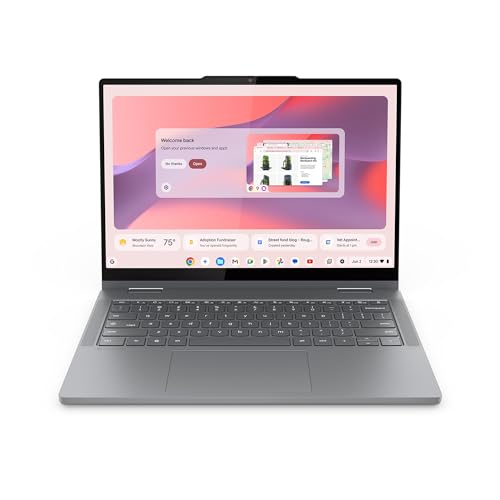
Pros
- Convertible laptop, tent, and tablet modes
- WUXGA IPS touchscreen
- Four USB ports plus HDMI
- Physical webcam shutter
Cons
- 4GB RAM may constrain demanding multitasking
- Who should skip it: buyers needing more than 4GB RAM
The Best Touchscreen Chromebooks by Use Case
Best for a Lower-Cost Full HD Laptop: Lenovo 14” FHD Touchscreen Slim 3 Chromebook
The Lenovo 14” FHD Touchscreen Slim 3 Chromebook suits buyers who want a conventional 14-inch touchscreen Chromebook for browsing, streaming, and basic productivity. Its 1920 x 1080 display provides Full HD resolution, while the MediaTek Kompanio 520 processor and 4GB of RAM point to a setup intended for everyday tasks rather than demanding workloads. Wi-Fi 6 and a card reader add useful connection and storage options.
Reasons to buy:
- The 14-inch Full HD touchscreen offers a clear, familiar laptop format for schoolwork, browsing, and video.
- Wi-Fi 6, Bluetooth, USB-A, USB-C, a headphone/microphone combo jack, and a card reader cover several common connection needs.
- The listing describes support for a 128GB Micro SD card, which can add removable storage for files.
Reasons to avoid:
- With 4GB of RAM and 64GB of eMMC storage, it has limited room for heavy multitasking or keeping many large files locally.
- The published details do not specify a measured battery runtime, so check the manufacturer listing if unplugged use is a priority.
Skip it if you need a convertible tablet mode, more built-in storage, or memory suited to heavier simultaneous tasks.
Best for Convertible Use and More Built-In Storage: Lenovo Chromebook 2-in-1 – Lightweight Laptop
The Lenovo Chromebook 2-in-1 – Lightweight Laptop is the more flexible choice if you want to switch between laptop, tent, and tablet modes. Its 14-inch WUXGA IPS touchscreen and 128GB of UFS storage make it distinct from the other model, which has a Full HD screen and 64GB of eMMC storage. The listing identifies an Intel N150 CPU, 4GB of RAM, two USB-C ports, two USB-A ports, and HDMI.
Reasons to buy:
- The folding 2-in-1 design supports laptop, tent, and tablet positions for different viewing and input situations.
- Its listed 128GB UFS storage is twice the other model’s stated built-in capacity, useful if you keep more files on the device.
- The port selection includes HDMI as well as two USB-C and two USB-A ports, offering more ways to connect displays and accessories.
Reasons to avoid:
- It still has 4GB of RAM, so the added storage and convertible hinge do not make it a clear choice for memory-intensive work.
- The listing’s brief processor description and feature text are not fully consistent: the title names an Intel N150 CPU, while feature copy refers more generally to an Intel Core processor. Confirm the exact processor on the seller’s current specification page.
Skip it if you will use the Chromebook only as a standard laptop and do not need the convertible design or extra built-in storage.
Also Considered
Both listed models appear in the main comparison because they address different needs; there are no additional products in this guide to list separately.
How to Choose the Best Touchscreen Chromebook
Match memory and processor to your workload
Both options list 4GB of RAM, so neither has a memory advantage on paper. That amount is most appropriate to consider for straightforward tasks such as web browsing, document work, and streaming. If you routinely keep many browser tabs open alongside several apps, 4GB may feel restrictive; look for a Chromebook with more RAM and verify the exact configuration in the listing before ordering.
Processor names can help distinguish models, but a name alone does not establish real-world speed. One listing specifies a MediaTek Kompanio 520 with eight cores and eight threads, while the other identifies an Intel N150 in its title and uses broader Intel Core wording elsewhere. Confirm the exact processor variant and make your decision around your expected tasks, not an unsupported assumption that one label guarantees better performance.
Choose display size and resolution for how you work
Both Chromebooks have 14-inch touchscreens, so screen size is not the main distinction here. The first listing specifies 1920 x 1080 Full HD resolution; the convertible model specifies WUXGA IPS. The IPS panel type is explicitly listed for the 2-in-1, while the published details do not identify the other model’s panel type. Resolution and panel labels describe different aspects of a display, and they do not establish brightness, color accuracy, or outdoor readability.
Think about where you will use touch input. It can be convenient for scrolling, tapping controls, or navigating a device held close, but it does not replace a keyboard for long writing sessions. If you want to use the screen in tablet or tent positions, the convertible design is the relevant feature; if you mainly work at a desk, a standard laptop layout may be sufficient.
Compare storage type, capacity, and expansion
The standard model lists 64GB of eMMC storage and a card reader, with the product details describing support for a 128GB Micro SD card. The 2-in-1 lists 128GB of UFS storage. Those figures refer to built-in storage, not the total amount of space you might add separately. Check the exact card compatibility and supported capacity in the current product information before relying on removable storage.
Cloud storage can reduce how much space you need on the Chromebook, but local capacity matters for downloads and files you want available offline. The 2-in-1’s higher listed built-in capacity offers more room on the device; the other model’s card reader may appeal if removable storage fits your routine. Neither listing provides enough detail to compare file-transfer speeds, so do not choose based on an assumed speed advantage.
Check ports and accessory connections
Port count can affect whether you need a hub or can connect accessories directly. The standard model lists one USB-A 3.2 port, one USB-C 3.2 port, a card reader, and a 3.5mm headphone/microphone combo jack. The 2-in-1 lists two USB-C ports, two USB-A ports, and HDMI. The 2-in-1 may be more convenient if you often connect several peripherals or an external display.
Do not assume every USB-C port supports the same video output, charging, or data functions. The published information gives port counts and some connector names, but not a full list of USB-C capabilities. If you plan to use a particular monitor, dock, or charger, verify the required connection and supported functions for the exact model before buying.
Consider portability, battery claims, and software needs
The 2-in-1 listing gives a weight of 3.3 lb and a thickness of 0.69 inches, and it describes long-lasting battery life and fast charging. Those battery statements are manufacturer claims, not a measured runtime in the published information. The other listing also describes long battery life without stating a duration. If you need a Chromebook to last through a specific school or workday, check for a runtime estimate and consider that actual use can affect battery life.
Both devices run ChromeOS, which is built around Google’s services and web-based work. Check that the apps you depend on are available and support the way you plan to work, especially if you rely on desktop software designed for another operating system. For more context on choosing a Chromebook for a particular household, see our Chromebook guidance for seniors. If you are comparing operating systems instead, our guides to Windows laptops for work and school and the broader laptop category cover different options.
How We Compared
This comparison uses the published product specifications and design details, including display size and resolution, listed processor and memory, storage type and capacity, ports, wireless connectivity, and convertible features. We also considered how those details fit common needs such as basic browsing, local file storage, accessory connections, and tablet-style use. The published ratings show no review count to assess, so customer feedback does not establish a recurring ownership pattern here.
Frequently Asked Questions
Can I use either Chromebook as a tablet?
The 2-in-1 model is explicitly described as switching between laptop, tent, and tablet modes. The other model is described as a touchscreen laptop, but the published information does not say that its display folds into tablet mode. Choose the convertible model if tablet positioning is important, and confirm whether any accessories you want are included rather than assuming they come in the box.
Is 4GB of RAM enough for school or everyday browsing?
Both listings specify 4GB of RAM, which can suit basic browsing, document tasks, and streaming, depending on how many apps and tabs you keep open. More demanding multitasking may benefit from a Chromebook with more memory. Check the exact RAM configuration on the product page, since the published data does not describe an upgrade path.
Which model has more built-in storage?
The 2-in-1 lists 128GB of UFS storage, while the standard touchscreen model lists 64GB of eMMC storage. The standard model also has a card reader, and its listing describes support for a 128GB Micro SD card. Confirm card support and capacity before treating removable storage as part of your plan.
Will either Chromebook connect to my monitor or dock?
The 2-in-1 listing includes HDMI and USB-C ports; the other lists USB-C and USB-A. The published specifications do not fully identify video output support or the capabilities of each USB-C port. Check the Chromebook’s detailed port specifications against your monitor or dock, including whether you need a direct HDMI connection or an adapter.
Should I choose Full HD or WUXGA?
The standard model’s listing specifies 1920 x 1080 Full HD resolution, while the 2-in-1 is described as having a WUXGA IPS display. These labels alone do not establish which screen looks better in every situation. Consider the convertible design and other features alongside resolution, and verify display details such as brightness if you expect to use the Chromebook in bright rooms.


Write Your Review
No reviews yet. Be the first to share your experience!