

The best tablet for drawing depends on where your artwork happens and whether you want to see the canvas under your pen. Screen displays connect to a computer, screenless tablets keep the workspace compact, and standalone models let you draw without a separate computer. This guide compares those formats, pen controls, screen details, and device compatibility so you can choose a setup that fits your work.
Before choosing, check the programs you use and the devices you plan to connect. Some tablets are input pads, not independent computers, and a USB-C connector alone does not guarantee that a phone can send video to a screen tablet.

Pros
- Battery-free stylus requires no charging
- Compact, lightweight design weighs just 0.6 pounds
- Six programmable physical shortcut buttons
- Broad compatibility with Windows, Mac, Linux, and Android
Cons
- Incompatible with iOS devices like iPad and iPhone
- Small 6x4 inch active workspace restricts arm movement
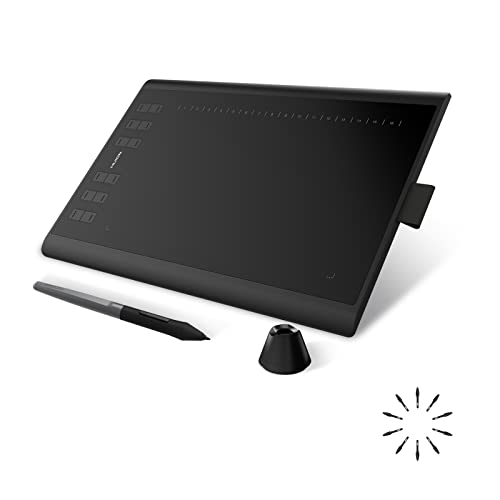
Pros
- Battery-free pen with responsive tilt detection
- Generous 10 by 6.25-inch active surface
- Twenty-eight customizable shortcut keys
- Ambidextrous layout with driver rotation
Cons
- Incompatible with iPhone and iPad hardware
- Does not support Linux Wayland display servers
- Skip if using iOS or Wayland environments

Pros
- Customizable Pro Pen 3 with 8,192 pressure levels
- Ten ExpressKeys and two dials for hardware shortcuts
- Dual wireless Bluetooth and USB connectivity options
- Slim, lightweight magnesium build under one pound
Cons
- Lacks built-in display screen for on-screen drawing
- Artists needing direct visual drawing feedback should skip it

Pros
- No computer needed for digital art creation
- Sharp 1920x1200 Full HD IPS display
- Battery-free stylus requires no charging
- Certified to FCC, CE, and GMS standards
Cons
- Claimed battery runtime limited to five hours
- Users needing full desktop operating systems should skip
Pros
- Calman-verified display covers 99 percent of Adobe RGB
- Stylus supports 16,000 pressure levels with tilt
- Bundled wireless remote adds 40 programmable shortcuts
- Etched glass surface reduces reflections and glare
Cons
- Heavy 12.2-pound chassis is not suited for portable use
- Modest 250-nit peak brightness limits viewing in bright rooms
- Height-adjustable stand is sold separately

Pros
- Battery-free stylus with 16,384 pressure levels
- Spacious 10 by 6.25-inch active drawing surface
- Broad compatibility across major desktop and mobile systems
- Includes drawing glove, stand, and ten replacement nibs
Cons
- Requires an external display rather than integrated screen
- Manufacturer recommends updating to Windows 11 or macOS 12
- Android aspect ratio optimization requires downloading companion application
Pros
- Factory calibrated display with Delta E under 1.5
- High 16384 pressure levels via PenTech 4.0 stylus
- Dual physical dials plus five customizable silent keys
- Full-laminated etched glass cuts glare and parallax
Cons
- Requires host computer or Android device to function
- Standalone mobile sketchers should skip this tethered display

Pros
- Responsive 16K pressure levels with battery-free stylus
- Fully laminated anti-glare screen minimizes parallax
- Single-cable USB-C connection simplifies workstation setup
- Customizable red dial and eight shortcut keys
Cons
- Requires an external computer or device to operate
- Traditional HDMI three-in-one cable sold separately
- Untethered portable tablet shoppers should skip it

Pros
- Fully standalone operation without requiring an external computer
- Includes stylus, case, glove, and pre-installed screen protector
- Laminated screen minimizes parallax and reduces glare
- Active stylus provides 4096 levels of pressure sensitivity
Cons
- Total package weight is relatively heavy at 3.3 pounds
- Professional digital illustrators should skip this entry-level hardware
Pros
- Fully laminated screen minimizes cursor parallax
- High pen pressure sensitivity with 16,384 levels
- Customizable red dial and eight shortcut keys
- Adjustable desk stand included in the package
Cons
- Requires tethered computer connection to function
- Who should skip: artists needing standalone mobile tablets
The Best Drawing Tablets by Use Case
Best for a Large Color-Accurate Workspace: XPPen Artist Pro 22 Gen 2 22″ 2.5K Drawing Tablet
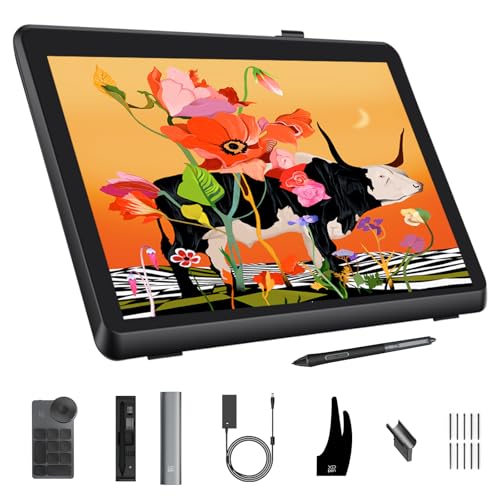
The XPPen Artist Pro 22 Gen 2 22″ 2.5K Drawing Tablet suits artists who want a large pen display for detailed illustration, photo editing, or design at a desk. Its listing specifies a 21.5-inch, 2560 x 1440 screen, Calman verification, and 99% Adobe RGB and sRGB coverage. The screen connects to a computer, and its included adjustable stand and wireless shortcut remote support a desktop workflow.
Reasons to buy:
- The 2.5K resolution gives a larger canvas than the 13.3-inch displays in this guide.
- The listing specifies 99% Adobe RGB, 99% sRGB, and 94% Display P3 coverage.
- The included remote has 40 customizable keys and a dial for shortcuts.
Reasons to avoid:
- Its 21.5-inch screen needs considerably more desk space than a compact pen display.
- It is a pen display, not a standalone tablet, so you need a compatible computer connection.
Skip it if you need a portable setup or want to draw without a computer.
Best Compact Screen Display: HUION Kamvas 13 (Gen 3) Drawing Tablet with Screen
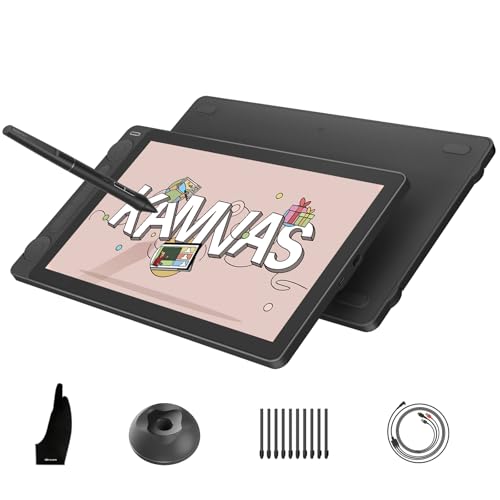
The HUION Kamvas 13 (Gen 3) Drawing Tablet with Screen is a smaller computer-connected display for artists who want to draw directly on the canvas without using a large monitor-sized device. Its listing specifies a 13.3-inch, fully laminated screen with anti-glare Canvas Glass 2.0, 99% sRGB and Rec.709 coverage, and 90% Adobe RGB. The two dials and five shortcut keys give you physical controls for common adjustments.
Reasons to buy:
- Full lamination reduces the gap between the pen tip and the displayed image.
- The listed 16,384 pressure levels and 2g initial activation force support light strokes and detailed pen control.
- Dual dials and five keys provide on-device controls for brushes and other software functions.
Reasons to avoid:
- The tablet must connect to a computer or laptop; it does not run drawing apps by itself.
- Android use depends on a device with USB 3.1 Gen 1 and DP 1.2 support.
Skip it if you need an independent tablet or have not confirmed that your computer or Android device supports the required connection.
Best Standalone Option for Beginner Lessons: PicassoTab 10″ Standalone Drawing Tablet
The PicassoTab 10″ Standalone Drawing Tablet fits beginners who want to start drawing without pairing a pen display with a computer. It runs drawing apps directly and includes five creative apps, tutorials, and a 10-inch laminated screen. The listing specifies a 4,096-level pressure-sensitive pen, 6GB RAM, and 64GB storage expandable up to 1TB.
Reasons to buy:
- Standalone operation means you can draw without a separate computer.
- Preloaded apps and guided lessons give new digital artists a starting point.
- The box includes a case, drawing glove, power adapter, and screen protector.
Reasons to avoid:
- Its 4,096 pressure levels are fewer than the 8,192- and 16,384-level options in this selection.
- The listed storage is 64GB, with expansion available through a separate memory card.
Skip it if your workflow depends on a computer-based art program or you want the highest listed pen pressure resolution.
Best Screenless Tablet for Shortcut Control: Wacom Intuos Pro Medium, Bluetooth Graphic Drawing
The Wacom Intuos Pro Medium, Bluetooth Graphic Drawing is a screenless pen tablet for creators who already work at a computer and prefer a compact drawing surface beside the keyboard. Its medium active area measures 11.4 x 8.1 inches, and the listing specifies 10 customizable ExpressKeys and two mechanical dials. You can connect over USB or Bluetooth and switch between multiple computers.
Reasons to buy:
- Two mechanical dials and 10 keys put shortcut controls on the tablet.
- Bluetooth provides a wireless connection option alongside USB.
- The medium format offers a sizable active area while keeping the tablet footprint relatively small.
Reasons to avoid:
- There is no built-in screen, so you look at the computer monitor while drawing on the tablet.
- The published information does not specify the supported operating systems, so confirm compatibility before buying.
Skip it if you want your pen tip and artwork visible together on a drawing screen.
Best Value for a Larger Screenless Work Area: XPPen Deco 01 V3 10×6 Drawing Tablet
The XPPen Deco 01 V3 10×6 Drawing Tablet is a screenless option for beginners who want a broad drawing area and direct shortcut access without a pen display. Its active area is listed as 10 x 6.25 inches, with eight customizable keys and a battery-free stylus that supports 16,384 pressure levels and up to 60 degrees of tilt. Listed compatibility includes Windows, macOS, ChromeOS, Linux, and Android 10 or later.
Reasons to buy:
- The large active area leaves room for broad pen movements.
- The battery-free pen supports tilt and 16,384 pressure levels.
- Eight customizable keys and USB-C connectivity give you flexible shortcuts and connection options.
Reasons to avoid:
- It has no screen, so drawing requires hand-eye coordination between the pad and your display.
- For Android use, the listing recommends the XPPen Tools app to adapt screen mapping.
Skip it if you need an all-in-one tablet or want to draw directly on a screen.
Also Considered
The Frunsi RubensTab T11 Pro standalone Drawing Tablet could suit buyers who want a self-contained device with a 10.1-inch, 1920 x 1200 display and a listed battery life of up to five hours, but its feature details are less specific about app and storage capabilities.
The HUION Inspiroy H1060P Graphics Drawing Tablet offers a 10 x 6.25-inch active area and 12 press keys plus 16 soft keys, but the Deco 01 V3 is a clearer fit here for buyers prioritizing its listed 16,384-level pen and broad OS support.
The HUION Inspiroy H640P 6×4 inch Drawing Tablet 8192 is a compact, lightweight screenless pad for travel, notes, and basic drawing, but its 6 x 4-inch active area is smaller than the desktop pads selected above.
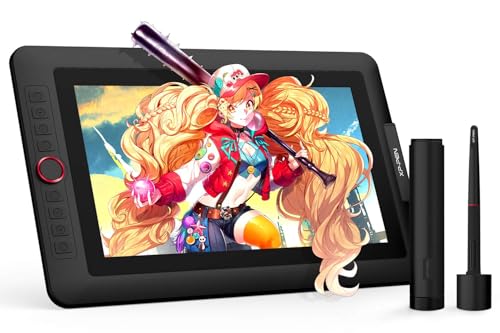
The XP-PEN Artist 13.3 Pro V2 Drawing Tablet provides a 13.3-inch laminated screen, dial, and eight shortcut keys, but the published data for two Artist 13.3 Pro V2 listings differs, so check the exact model and included cable before choosing one.
How to Choose the Best Tablet for Drawing
Decide whether you need a screen or a standalone device
A screenless tablet is an input surface: it sends pen movement to a connected computer, while you watch the monitor. This arrangement can work well at a desk, but it takes practice to coordinate your hand with an image elsewhere. A pen display puts the canvas under the pen tip, although it still needs a computer. A standalone tablet runs apps by itself, so it is more convenient away from a desk, but the listed models use less pen pressure resolution than some computer-connected choices.
Check whether the listing says standalone or explicitly requires a computer. The PicassoTab and Frunsi RubensTab are described as standalone, while the Kamvas 13 is explicitly not standalone. Do not assume that a screen tablet can run software merely because it has a display.
Match active area and screen size to your workspace
The active area on a screenless tablet determines how far your hand travels for a given cursor movement. A compact 6 x 4-inch surface, such as the H640P, saves desk and bag space, while a 10 x 6.25-inch pad provides more room for larger gestures. Pen displays have a separate screen size to consider: a 13.3-inch model takes less desk space than the 21.5-inch XPPen Artist Pro 22 Gen 2.
Look for active drawing dimensions on pen pads, not just the tablet’s outside measurements. For displays, compare screen size and resolution together. A larger screen may be easier to work on, but it also needs more room and a suitable computer connection.
Read pen specifications as a group
Pressure sensitivity describes how the pen responds as you press harder or lighter; tilt support can help when a brush uses pen angle for shading. A battery-free pen avoids charging the stylus, but it does not mean the tablet itself is wireless or standalone. Pen details also vary by model, so do not assume every product in a brand’s range shares the same pressure levels or controls.
Compare the listed pressure levels, tilt support, initial activation force when supplied, and side buttons. The Kamvas 13 listing specifies 16,384 levels and a 2g initial activation force. The Deco 01 V3 also lists 16,384 levels and tilt, while the standalone PicassoTab lists 4,096 levels. Those figures help separate the stated capabilities, but software response and personal preference still matter.
Check display finish, color coverage, and controls
Full lamination reduces the visible gap between glass and screen, which can make the pen tip appear closer to the mark. Anti-glare or etched surfaces may help reduce reflections, but the feel is a preference rather than a guarantee that every artist will like the texture. Color coverage figures matter more when your work needs consistent color for digital delivery or print; compare the stated color spaces rather than relying on screen resolution alone.
Shortcut keys, dials, and remotes can speed up repeated actions such as zooming or changing brush size. Check how many controls are included and whether they are physical or on-screen. The Wacom tablet has mechanical dials and ExpressKeys, while the XPPen Artist Pro 22 Gen 2 includes a separate wireless remote.
Verify operating system and connection requirements
Confirm compatibility for the exact computer, phone, or tablet you plan to use, along with the drawing software. Product listings may distinguish between USB data and video over USB-C. For a pen display connected to Android, the Kamvas 13 listing calls for USB 3.1 Gen 1 and DP 1.2 support; a USB-C socket by itself does not establish that a phone can output video.
Also check operating system versions, included cables, adapters, and any software-specific driver needs. For example, the H1060P supports Ubuntu with the Xorg display server, but not Wayland, according to its listing. Buyers on Linux, ChromeOS, or Android should confirm the exact model’s requirements rather than relying on general brand compatibility.
How We Compared These Drawing Tablets
We compared the published product specifications and descriptions, focusing on tablet type, active area or screen size, pen features, display details, controls, connection requirements, and stated operating system support. We also considered the customer feedback information supplied, but it did not provide review text to support claims about recurring owner experiences. Recommendations reflect the listed features and the needs each format is suited to, not a claim that one model will suit every artist.
Frequently Asked Questions
Can I use a drawing tablet without a computer?
Only a standalone model can run drawing apps without a separate computer. The PicassoTab and Frunsi RubensTab listings describe them as standalone devices. Screenless pads and pen displays need a compatible host device, even when the pen display has its own screen.
Will a drawing tablet work with an Android phone?
Some models support Android, but requirements differ. Screenless tablets such as the Deco 01 V3 list Android compatibility, while a screen display may need a phone that supports video output over USB-C. Check the exact model’s supported Android version, cable, adapter, and display-output requirements before buying.
What is the difference between a pen tablet and a pen display?
A pen tablet has no drawing screen, so you draw on its surface while watching the computer monitor. A pen display shows the artwork beneath your pen and can feel more direct, but it still connects to a computer unless the product is explicitly described as standalone.
Do more pressure levels always mean better drawing results?
Not necessarily. More listed levels indicate finer input resolution, but pen feel also depends on factors such as activation force, tilt support, software settings, and your drawing habits. Compare the full pen specification and consider whether your work needs delicate pressure changes.
Does a USB-C connection guarantee one-cable setup?
No. USB-C describes the connector shape, not every capability it supports. A pen display may need a full-featured USB-C connection with video support, while another setup may require separate power or an HDMI cable. Check the included cable and the host device’s port specifications.
Should I choose a screenless tablet for digital art?
A screenless tablet can be a practical choice if you work at a computer, want a compact drawing surface, or prefer to keep your head oriented toward a monitor. It may take practice to coordinate the pen and cursor. If seeing the artwork directly under the pen matters more, compare a pen display instead.

Write Your Review
No reviews yet. Be the first to share your experience!