

You can connect an Xbox controller to a Windows PC with a USB cable, Bluetooth, or an Xbox Wireless Adapter. The right method depends on your controller, your PC’s available connections, and whether you want a wired or wireless setup. Most connections take only a few minutes.
What You Need
Gather your Xbox controller, a compatible USB cable if you want a wired connection, or a PC with Bluetooth or a compatible wireless adapter. Check your controller’s model and your Windows version first: adapter compatibility varies, and some third-party adapters may need a driver on first use.
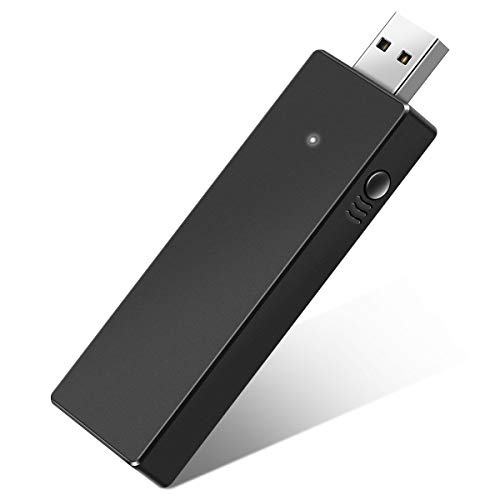
Pros
- Supports up to eight controllers
- Compatible with USB 2.0 and 3.0
Cons
- First use may require a driver download
- Who should skip it: Xbox 360 controller owners

Pros
- Supports up to eight controllers
- Compatible with several Xbox One controller models
- Compact and lightweight
Cons
- Windows 11 compatibility not specified
- Skip if you need confirmed Windows 11 support
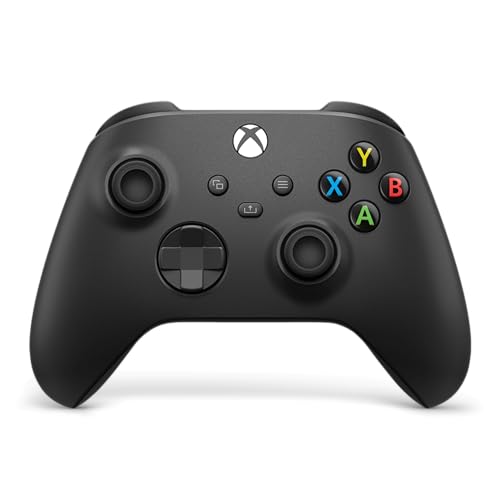
Pros
- USB-C, Bluetooth, and Xbox Wireless connectivity
- Textured grips on triggers, bumpers, and back
- Button remapping through Xbox Accessories app
- Built-in 3.5 mm headset jack
Cons
- Skip it if your device lacks supported wireless connectivity

Pros
- Bluetooth for Windows 10 PCs and tablets
- Compatible with three Xbox One console models
- Textured grip
Cons
- Compatibility listed only for Xbox One and Windows 10
- Who should skip it: players needing support for other platforms

Pros
- Adjustable thumbstick tension
- Interchangeable controls and paddles
- Three saved profiles
- Up to 40-hour battery life
Cons
- Who should skip it: players who do not need extensive customization
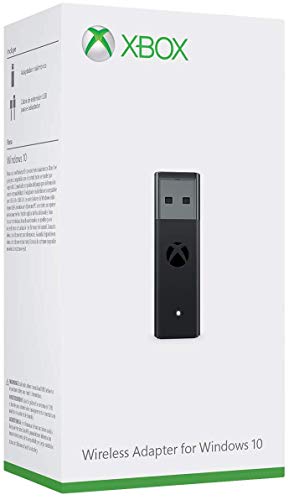
Pros
- Supports Xbox Series X and Xbox One controllers
- USB extender cable included
- In-game chat and stereo audio supported
Cons
- Windows 10 support specified; skip if you need another OS
How to Connect an Xbox Controller to a PC
Step 1: Check your controller and PC
Confirm which connection your controller supports. Newer Xbox Wireless Controllers can connect by USB-C, Xbox Wireless, or Bluetooth, while other models may not offer Bluetooth. Check the controller’s manual or manufacturer support information if you are unsure.
Check your PC’s Windows version and available ports, too. The supplied adapter listings specify different Windows support: some cover Windows 7, 8, 8.1, and 10, while the Microsoft adapter listing specifies Windows 10. Do not assume an adapter supports a Windows version not listed.
Step 2: Choose USB, Bluetooth, or an adapter
USB is a straightforward option if you have a cable that fits both controller and PC. Bluetooth avoids a cable, but both the controller and computer need compatible Bluetooth support. An Xbox Wireless Adapter is another wireless option for supported controllers and Windows PCs.
Choose based on your actual equipment and use. A wired connection avoids wireless pairing, while Bluetooth avoids buying an adapter if your devices support it. An adapter may suit a PC without Bluetooth or a setup using several controllers, subject to the adapter’s listed compatibility.
Step 3: Connect by USB
Turn on your PC, then connect the controller with a compatible cable. Plug the other end into the PC and allow Windows a moment to recognize the controller. If it does not respond, check that the cable fits and supports data, try another USB port, and consult the controller maker’s support instructions.
The Carbon Black model listed here supports USB-C, but the product information does not state that a USB cable is included. Check what you own or what comes with the specific controller before relying on a wired connection.
Step 4: Pair by Bluetooth
Enable Bluetooth on your PC and open Windows’ Bluetooth device-pairing controls. Turn on the controller, then press and hold its pairing button until it enters pairing mode. Select the controller from the devices Windows finds and follow the on-screen prompts. Menu names and button locations can vary by Windows version.
If the controller does not appear, check its manual for the pairing-button location and confirm that the controller supports Bluetooth. Disconnect it from another device if needed, then try pairing again.
Step 5: Pair with a wireless adapter
Plug a compatible adapter into the PC’s USB port. Install a driver if its instructions require one, then put the adapter and controller into pairing mode according to their manuals. Wait for the connection indicator or Windows prompt, if provided, and check that the controller responds in your game.
The Cipon and Muddlepaw listings say their adapters support up to eight controllers, but compatibility is limited to the controller and Windows versions named in each listing. The Microsoft adapter listing specifies Windows 10 and says it includes a USB extender cable.
Step 6: Confirm controller input in your game
Open a game that supports controllers and check whether it responds to the controller’s buttons and sticks. If it does not, confirm the connection in Windows, reconnect or re-pair the controller, and check the game’s controller settings or support information.
Step 7: Troubleshoot connection problems
If input drops or pairing fails, charge or replace the controller’s batteries as appropriate, move the PC or adapter to a more accessible USB port, and repeat pairing. For adapter-specific driver or compatibility problems, follow the adapter maker’s instructions rather than installing software from an unknown source.
Common Mistakes to Avoid
Do not assume every Xbox controller supports Bluetooth. Check the exact model before buying an adapter or troubleshooting a missing Bluetooth connection.
Do not treat Xbox Wireless and Bluetooth as interchangeable. An adapter designed for Xbox Wireless may use a different connection method from your PC’s built-in Bluetooth. Follow the adapter instructions and verify controller compatibility.
Do not assume an adapter supports every Windows version or Xbox controller. The Cipon listing says it is not compatible with Xbox 360 controllers, and adapter listings specify their own operating-system support. Check those details before purchase.
Do not assume any USB cable will work for data just because its connector fits. If Windows does not recognize the controller, try a known data-capable cable and another port before changing settings or buying extra gear.
Recommended Gear
Cipon Wireless Adapter Compatible with Xbox One: Its listing supports up to eight controllers and names Windows 7, 8, 8.1, and 10. Its stated limits include no Xbox 360 support, possible driver setup, and wired chat headset support only under Windows 10. Skip it if you need confirmed support for a different Windows version or Xbox 360 controllers.
Pros: Supports multiple controllers and lists compatibility with several Windows versions. Cons: It is third-party, may need a driver, and does not support Xbox 360 controllers. Who should skip it: Buyers who need an official Microsoft adapter or broader, unlisted compatibility. Browse more game controllers.
XBOX Wireless Gaming Controller | Carbon Black: It supports USB-C, Bluetooth, and Xbox Wireless, so it offers several ways to connect to a compatible PC. The listing does not say a USB-C cable is included. Pros: Multiple connection options and a 3.5 mm headset jack. Cons: You need to confirm PC Bluetooth support or provide a compatible cable. Who should skip it: Buyers who want an adapter included or need a confirmed cable in the box. Explore the gaming category.
Microsoft Xbox Wireless Adapter for Windows 10: The listing specifies Windows 10 compatibility, Xbox Series X and Xbox One support, and an included USB extender cable. Pros: Microsoft-branded wireless adapter and extender cable. Cons: The published listing specifies Windows 10, so check support for other Windows versions before buying. Who should skip it: Anyone who needs confirmed compatibility with a different operating system.
Other options include the Muddlepaw adapter, which lists support for up to eight controllers and Windows 7, 8, and 10, and the Xbox Elite Series 2, which supports USB-C, Bluetooth, and Xbox Wireless. The older Xbox Wireless Controller listing specifies Bluetooth for Windows 10 PCs and tablets. Check each listing and your controller model before choosing. See also the Game Controllers category.
Frequently Asked Questions
Can I connect an Xbox controller to a PC without Bluetooth?
Yes. Use a compatible USB cable or a wireless adapter supported by your controller and Windows version. Check the adapter instructions for driver and pairing requirements.
Does every Xbox controller connect to a PC by Bluetooth?
No. Bluetooth support varies by controller model. Check the model’s documentation before trying to pair it with your PC’s Bluetooth controls.
Can I connect more than one controller?
Some adapters in this guide list support for up to eight controllers. That claim applies to those adapter listings, not automatically to Bluetooth or every PC setup. Confirm support for your Windows version, controllers, and game.
Why does my PC not recognize the controller?
Possible causes include an unsuitable cable, an unsupported controller or Windows version, an uninstalled adapter driver, or incomplete pairing. Check the connection, repeat pairing, and use the manufacturer’s support instructions for model-specific steps.
Can I use a headset through the controller?
Some listed controllers have a 3.5 mm audio jack. The Cipon adapter listing specifies support for wired chat headsets under Windows 10 and says wireless headsets are not supported through that adapter. Check your controller, adapter, Windows version, and headset instructions.


Write Your Review
No reviews yet. Be the first to share your experience!