

A screen drawing tablet can depend on a computer, while a standalone model can run apps on its own. That difference affects where you can work, which software you can use, and what you need to connect before drawing. This guide to the Best Drawing Tablet Under $300 compares two XP-Pen designs by drawing workflow, compatibility, and portability.
Pros
- Fully laminated screen minimizes cursor parallax
- High pen pressure sensitivity with 16,384 levels
- Customizable red dial and eight shortcut keys
- Adjustable desk stand included in the package
Cons
- Requires tethered computer connection to function
- Who should skip: artists needing standalone mobile tablets

Pros
- Battery-free stylus with 16,384 pressure levels
- Smooth 90Hz anti-glare display with paper texture
- Standalone functionality with Android 14 and Google Play
- Lightweight 495-gram body fits easily into bags
Cons
- Android platform cannot run full desktop drawing software
- Users needing desktop operating systems should skip it
The Best Drawing Tablets by Use Case
Best for Computer-Based Digital Art: XPPen Artist 13.3 Pro V2 Drawing Tablet
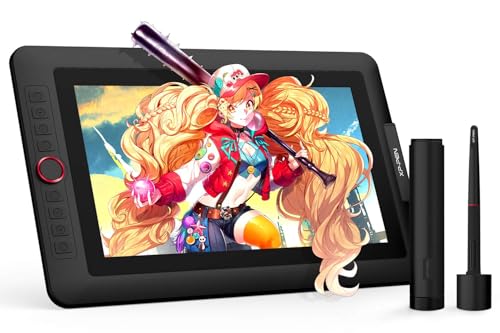
The XPPen Artist 13.3 Pro V2 Drawing Tablet suits artists who want to draw on a screen while using a separate computer. Its 13.3-inch, fully laminated FHD display is designed to reduce the visible gap between pen tip and image, and the listing specifies a 178-degree viewing angle. It supports Windows, Mac, Chrome OS, and Linux, with named software support for Photoshop, Illustrator, SAI, and Blender 3D. The computer connection is essential, so plan for a laptop or desktop and the included 3-in-1 cable.
Reasons to buy:
- On-screen drawing pairs a 13.3-inch display with a fully laminated design.
- The listing specifies support for several desktop operating systems and creative applications.
- The supplied adjustable stand supports a screen-based drawing setup.
Reasons to avoid:
- It is not standalone: drawing depends on a connected computer.
- Check your exact operating system and preferred software version before buying, since the listing does not specify every version or app detail.
Skip it if you need a tablet that runs drawing apps without a computer. The beginner drawing tablet guide offers more context on choosing between screen and pen options.
Best for Shortcut-Controlled Workflow: XPPen Artist 13.3 Pro V2 Drawing Tablet
The XPPen Artist 13.3 Pro V2 Drawing Tablet is also a strong fit for artists who want frequent controls close to the drawing surface. Its red dial can be assigned to tasks such as zooming, changing brush size, or flipping the canvas, while eight customizable shortcut keys let you set up other actions. The stylus supports tilt up to 60 degrees and has two customizable buttons, giving you several ways to adapt input to your routine. Those controls are useful only if your software and preferred actions support the assignments you want.
Reasons to buy:
- The dial and eight display keys provide physical controls for common workflow actions.
- The stylus supports tilt and includes two customizable buttons.
- The pen is battery-free, according to the product information.
Reasons to avoid:
- Custom controls add little value if you prefer keyboard shortcuts or rarely change tools.
- The product still needs a computer, cable, and compatible software to function as a drawing display.
Skip it if you want a self-contained tablet or a minimal drawing surface without dedicated shortcut controls. Compare stylus features in our guide to styluses for drawing tablets.
Best for Portable Sketching: XPPen 10.95" Standalone Drawing Tablet
The XPPen 10.95" Standalone Drawing Tablet is the more portable choice for drawing away from a desk with a computer. It runs Android 14 and includes the XPPen Notes app, while its listing says users can download other apps from Google Play. At 7 mm thick and 495 g, it is designed to slip into a bag; the 10.95-inch X-Paper display uses anti-glare treatment and a textured surface intended to feel more like paper. App selection and drawing features can vary, so check that your preferred Android app is available and supports the tools you need.
Reasons to buy:
- Android 14 and Google Play app access support a standalone workflow, subject to app compatibility.
- The listed 7 mm thickness and 495 g weight make portability a clear design priority.
- The anti-glare X-Paper display and paper-like surface target sketching and note-taking.
Reasons to avoid:
- The display is 10.95 inches, smaller than the Artist model’s 13.3-inch screen.
- The published information does not name all compatible apps or describe their feature support.
Skip it if your workflow depends on a particular desktop application or operating system. For other tablet options aimed at learners, see our handwritten-notes tablet guide.
Best for Notes and Reading Alongside Art: XPPen 10.95" Standalone Drawing Tablet
The XPPen 10.95" Standalone Drawing Tablet can suit students or mobile creatives who want sketching, handwritten notes, PDF annotation, and reading in one device. Its listing describes three color modes: Natural Mode for notes, Light Color Mode for sketching, and Black and White Mode for reading. The screen displays 16.7 million colors in Natural Mode, and the product information specifies a 90 Hz refresh rate. These modes broaden its uses, but they do not replace checking the Android apps and file tools you rely on.
Reasons to buy:
- Three listed color modes address notes, sketching, and reading.
- The included XPPen Notes app is described as lifetime free.
- The stylus is battery-free, so the listing does not call for stylus charging.
Reasons to avoid:
- It uses Android rather than serving as a direct replacement for a computer-connected pen display.
- Confirm that your note, PDF, and drawing apps are available and work as expected on Android 14.
Skip it if reading and note-taking are not part of your use, or if you need desktop creative software. You can also compare broader options in our budget tablet with pen support guide.
How to Choose the Best Drawing Tablet Under $300
Decide whether you need a computer-connected display
A pen display shows your computer’s work on its screen, but it depends on that computer to run creative software. The Artist 13.3 Pro V2 follows this approach and includes a 3-in-1 cable. The standalone XPPen model runs Android 14, so it can work without a computer for supported apps. Before choosing, list the devices and software you plan to use, then confirm that the tablet supports them. Do not assume that a product described as compatible with an operating system supports every version or app feature.
Match screen size and surface to your working style
The Artist model’s 13.3-inch screen gives you a larger drawing area than the standalone model’s 10.95-inch display. A larger screen can make room for artwork and interface controls, but the listing does not provide the dimensions of the overall setup, so check your desk space and stand placement. The standalone tablet is described as 7 mm thick and 495 g, which favors carrying it. Its X-Paper surface uses AG nano-etching for a paper-like texture, while the Artist display is fully laminated. These are different surface approaches, not proof that one will feel better to every artist.
Check pen input and physical controls
Both listings specify 16,384 pressure levels and battery-free pens. The Artist model also lists up to 60 degrees of tilt, eight customizable keys, and a dial; the standalone model lists tilt support but does not give a tilt angle in the published details. If you shade with tilt or rely on shortcuts, compare these controls against your software and habits. A higher listed pressure-level count alone does not tell you how a pen will feel or whether a specific application will use every feature.
Verify software, operating system, and connection needs
The Artist listing names Windows 7 or later, Mac OS X 10.10 or later, Chrome OS 88 or later, and Linux, along with several creative programs. The standalone tablet lists Android 14 and Google Play access. Those compatibility lists can guide your shortlist, but they do not identify every app version, accessory, or connection detail. Check the exact requirements for your computer, software, and preferred drawing tools before purchase. If you are considering a lower-cost note-focused device, our drawing tablet options under $100 provide a separate point of comparison.
Consider color, glare, and long sessions
The Artist listing specifies 88% NTSC, at least 91% Adobe RGB, and 123% sRGB, while the standalone listing describes 16.7 million colors in Natural Mode, anti-glare treatment, and TÜV-certified low blue light. These claims describe different display characteristics and should not be treated as directly equivalent measurements. If color matching matters for your work, check how the stated gamut aligns with your software and needs. If you draw or read for long sessions, consider screen glare, viewing angle, and whether the chosen surface feels comfortable to you.
How We Compared
We compared the published product specifications and design details, including display type and size, pen features, operating systems, named software support, physical controls, and portability information. The available product data included no customer review details to assess, so this guide does not rely on user-reported experience. Recommendations reflect the differences stated in the listings and the kinds of workflows those features support.
Frequently Asked Questions
Does the XPPen Artist 13.3 Pro V2 work without a computer?
No. The published listing says it needs a computer and includes a 3-in-1 cable. Choose the standalone XPPen model if you want to run supported apps directly on the tablet.
Can the standalone XPPen tablet run drawing apps?
It runs Android 14, includes XPPen Notes, and the listing says you can download apps from Google Play. Check the store listing and app requirements for your preferred drawing software before relying on it.
Which model has the larger drawing screen?
The Artist 13.3 Pro V2 has a 13.3-inch display. The standalone tablet has a 10.95-inch display, which may be easier to carry but provides less screen area.
Do both tablets include battery-free pens?
Yes. The published details describe a battery-free stylus for each model. Both list 16,384 pressure levels, but the Artist model gives a 60-degree tilt figure while the standalone listing only says tilt support.
Can I use the Artist tablet with Photoshop or Blender?
The listing names Photoshop and Blender 3D among compatible creative software, alongside Illustrator and SAI. Confirm current app and operating system requirements for your specific computer before buying.




Write Your Review
No reviews yet. Be the first to share your experience!