

Taking handwritten notes digitally presents distinct choices between surface friction, writing response, and system independence. Writing on slick glass screens often feels slippery, which can hurt your penmanship. External drawing pads and smart notepads offer better physical resistance, but they rely on separate computers or companion phone applications to manage your documents.
This guide evaluates choices for the best tablet for handwritten notes with stylus by examining standalone color screens, tethered digitizer boards, and smart ink notebooks. We evaluate how each design handles tactile control, platform flexibility, and daily note capture.
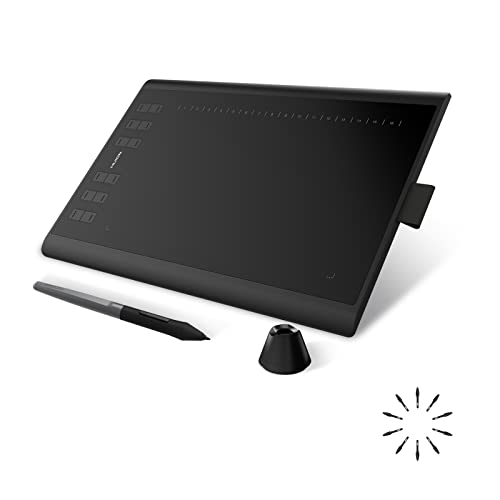
Pros
- Battery-free pen with responsive tilt detection
- Generous 10 by 6.25-inch active surface
- Twenty-eight customizable shortcut keys
- Ambidextrous layout with driver rotation
Cons
- Incompatible with iPhone and iPad hardware
- Does not support Linux Wayland display servers
- Skip if using iOS or Wayland environments

Pros
- Battery-free stylus with 16,384 pressure levels
- Spacious 10 by 6.25-inch active drawing surface
- Broad compatibility across major desktop and mobile systems
- Includes drawing glove, stand, and ten replacement nibs
Cons
- Requires an external display rather than integrated screen
- Manufacturer recommends updating to Windows 11 or macOS 12
- Android aspect ratio optimization requires downloading companion application

Pros
- Uses standard A5 paper notebooks up to 8mm thick
- High pressure sensitivity with 8192 levels
- Offline writing support with automatic mobile syncing
- Up to 14 hours of continuous battery life
Cons
- Requires the dedicated matching ink pen to sync
- Needs mobile app on iOS or Android for sync
- Who should skip: users wanting an active display screen

Pros
- Battery-free stylus with 16,384 pressure levels
- Smooth 90Hz anti-glare display with paper texture
- Standalone functionality with Android 14 and Google Play
- Lightweight 495-gram body fits easily into bags
Cons
- Android platform cannot run full desktop drawing software
- Users needing desktop operating systems should skip it
Choosing the Best Tablet for Handwritten Notes with Stylus
Form Factor: Standalone Screen, Tethered Pad, or Smart Paper
Your choice of physical build shapes your entire daily workflow. A standalone screen tablet runs an internal operating system, letting you view and annotate documents directly on the screen without bringing along a separate computer. Tethered pen tablets plug into an external computer or smartphone, functioning as digitizer surfaces where you look up at a monitor while writing on your desk. Smart paper notebooks let you write with an ink pen on real paper while sending your strokes to a phone via wireless radio. Independent screen devices offer complete mobility, whereas input pads reduce weight but separate your hand motion from your field of view.
Stylus Pressure Sensitivity and Tilt Detection
Pen response governs how neatly your handwriting renders on the page. Baseline handwriting requires between 4,096 and 8,192 pressure levels, which you find on models like the HUION Inspiroy H1060P Graphics Drawing Tablet and the XPPen Note Plus Digital Notebook with Pen Syncs. Modern styluses reach 16,384 levels on the XPPen Deco 01 V3 10×6 Drawing Tablet and the XPPen 10.95″ Standalone Drawing Tablet, allowing subtle stroke transitions when sketching or writing small script. Tilt support up to 60 degrees accommodates natural writing angles, while battery-free pens remove the need to recharge your stylus between study sessions.
Writing Surface Friction and Visual Response
The physical resistance of the writing plane controls how steadily your pen moves. Smooth glass allows plastic tips to slide without grip, which can tire your hand over long lectures. Matte etched surfaces introduce subtle friction that feels closer to regular stationery. The XPPen 10.95″ Standalone Drawing Tablet features an anti-glare nano-etched glass display and a 90Hz refresh rate to reduce visual stroke lag. If you want to expand your research into general mobile computing, you can consult our guide on the best budget tablet with pen support to review affordable pen options. Screenless pads rely on textured plastic shells, while smart notebooks maintain genuine tactile paper feedback by using real paper pads.
Operating System and Application Compatibility
Your hardware must pair reliably with your preferred note software and file formats. Standalone tablets running Android 14 grant direct access to Google Play store apps, local file directories, and cloud backup options. Input pads require compatible desktop drivers across Windows, macOS, Chrome OS, or Linux distributions. For instance, the HUION Inspiroy H1060P functions on Ubuntu Linux using an Xorg display server, but it does not support Wayland. If you take meeting notes or run productivity software in an office, you can review our recommendations for the best tablet for business. Smart notepads connect through companion apps on iOS or Android, which receive and organize your notes over Bluetooth 5.3.
How We Compared These Products
Our editorial analysis relies on published technical specifications, manufacturer documentation, and documented system compatibility details. We evaluated stylus pressure tiers, active surface dimensions, connection standards, and software support across each unit. We also evaluated verified customer feedback to understand typical setup steps and usability patterns across desktop and mobile workflows.
Which Option Fits Your Needs?
The XPPen 10.95″ Standalone Drawing Tablet serves mobile note-takers and students who need an independent color screen. It runs Android 14 out of the box, provides a 10.95-inch anti-glare nano-etched display with a 90Hz refresh rate, and uses a battery-free stylus supporting 16,384 pressure tiers. Pros: all-in-one portable operation, responsive high refresh display, and wide Google Play app support. Cons: weighs 495 grams, making it the heaviest model here, and requires periodic battery charging. Who should skip it: shoppers who prefer a secondary desktop pad wired to a PC monitor. Students evaluating educational options can also explore our tablets for students guide.
The XPPen Note Plus Digital Notebook with Pen Syncs is designed for traditional writers who want the physical feel of ink on real paper combined with digital cloud backup. The device holds standard A5 paper up to 8mm thick and tracks your pen strokes using electromagnetic resonance technology with 8,192 pressure levels. Pros: genuine paper writing feel, up to 14 hours of continuous battery life, and compact 350-gram build. Cons: requires specific D1 ballpoint ink refills and lacks an electronic display for instant color corrections. Who should skip it: users who want to annotate multi-page digital PDFs or highlight color documents on the fly.
The XPPen Deco 01 V3 10×6 Drawing Tablet suits computer users who want high stylus sensitivity for desk-based notes, sketches, and online teaching. The 8mm thin board connects via USB-C to Windows, Mac, Chrome OS, and Android devices, paired with a stylus that delivers 16,384 pressure levels. Pros: advanced pressure sensitivity, 8 customizable shortcut keys, and wide desktop OS support. Cons: lacks a built-in display and requires a connected host device. Who should skip it: mobile workers who need an independent screen without carrying a laptop.
The HUION Inspiroy H1060P Graphics Drawing Tablet matches desktop workers who rely heavily on hardware shortcuts. It features a 10 x 6.25 inch active workspace equipped with 12 physical press keys and 16 soft keys for rapid tool switching. Pros: generous array of programmable shortcuts, 8,192 pressure levels, and reversible build for left-handed use. Cons: no visual display, does not support Wayland on Ubuntu Linux, and does not work with iOS devices. Who should skip it: anyone who wants to write directly on a glass screen or sync notes to an iPad.
Frequently Asked Questions
What is the difference between a standalone tablet and a graphics drawing tablet?
A standalone tablet includes its own processor, memory, battery, and display screen, running an operating system like Android so you can write directly on digital files without a PC. A graphics tablet is an input accessory without an internal computer or screen, requiring a continuous cable connection to an external computer or phone.
Do battery-free styluses need regular charging?
Battery-free styluses operate without internal batteries or charging cables. They draw power wirelessly from an electromagnetic resonance sensor board built directly underneath the writing surface, allowing you to write without interruptions.
How does a smart notebook transfer handwritten notes to a phone?
A smart notebook houses a digital sensor underneath ordinary paper. As you write with the specialized ink pen, the internal sensor tracks your pen coordinates and stroke intensity, transmitting the digital vector data to a mobile companion application over Bluetooth.
Is 16K stylus pressure necessary for simple handwritten text?
Basic handwritten notes render clearly with 4,096 to 8,192 levels of pressure sensitivity. Pens offering 16,384 levels provide finer stroke tapering and gradual thickness changes, which helps users who mix handwriting with technical drawings or delicate shading.
Can I connect a graphics pen tablet to an Android smartphone?
Many graphics tablets support Android phones through USB OTG connections. The XPPen Deco 01 V3 works with Android 10.0 and newer with screen aspect mapping, while the HUION Inspiroy H1060P supports Android 6.0 and newer, though cursor visibility can vary across specific phone brands.
Do textured tablet surfaces cause stylus nibs to wear down?
Textured matte glass and granular plastic surfaces create mechanical resistance against plastic stylus tips to provide better writing control. This intentional friction gradually wears down the plastic tips over extended periods of use, which makes periodic nib replacement normal.



Write Your Review
No reviews yet. Be the first to share your experience!