

A smart lock can make guest access easier, but remote control and keyless entry only help if the lock suits your door and home network. This guide to the Best Smart Lock Under $200 examines the listed Philips model’s access options, connectivity, app features, and setup considerations.
There is one listed product, so this is a focused evaluation rather than a broad comparison across several locks. Check your door measurements and Wi-Fi conditions before choosing it, and consider whether you need a matching handle or only a deadbolt.
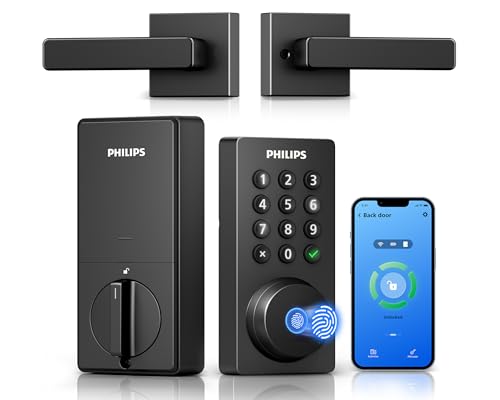
Pros
- Built-in Wi-Fi requires no extra bridge
- Includes matching door lever set
- Fast 0.3-second biometric fingerprint response
- Multiple guest access code options
Cons
- Supports 2.4GHz Wi-Fi networks only
- Alkaline batteries not included in package
- Auto-lock feature turned off by default
The Best Smart Lock by Use Case
Best for Multiple Keyless Entry Options: Philips WiFi Keypad Deadbolt with Handle
The Philips WiFi Keypad Deadbolt with Handle combines a deadbolt and matching door lever with app control, a keypad, and fingerprint entry. Its listing specifies direct connection to 2.4GHz Wi-Fi without a separate hub, plus compatibility with Alexa and Google Assistant. This makes it a candidate for households that want to share codes, manage entry remotely, and keep a conventional keyless keypad available. Compare access approaches for rental properties if you need to issue and change guest credentials often.
Reasons to buy:
- Supports permanent, one-time, periodic, and recurring PIN codes, giving you options for household members and temporary visitors.
- Includes fingerprint entry and a backlit keypad, so you can choose between biometric access and a code.
- Built-in Wi-Fi supports remote locking, unlocking, status checks, and access-history viewing through the Philips Home Access App, without a separate hub.
Reasons to avoid:
- The listing says the lock should remain within 33 ft (10 m) of the Wi-Fi router and notes that walls, metal, and interference can weaken the connection.
- Auto-lock is off by default, batteries are not included, and the listing calls for standard 1.5V alkaline batteries rather than rechargeable or high-power lithium batteries.
Who should skip it: Skip it if your door or existing hardware will not fit the lock, your router cannot provide a suitable 2.4GHz connection nearby, or you want a lock that does not depend on an app for its extra features.
How to Choose the Best Smart Lock Under $200
Price alone cannot show whether a smart lock fits your entry door or the way your household shares access. Compare installation fit, connection requirements, entry methods, and the everyday work involved in maintaining the lock. The Philips listing provides useful feature details, but it does not provide every specification a buyer may need, so verify unanswered questions with the seller or manufacturer.
1. Confirm the door and hardware fit
Start with your door, deadbolt, and handle arrangement. This Philips model includes a matching lever, which may suit a door upgrade where both pieces are needed. If you only plan to replace a deadbolt, the included handle may not match your preferred setup. The published information does not state door thickness, backset, bore-hole dimensions, handing, or compatibility with particular existing locks.
Before ordering, find the installation requirements for the exact lock and compare them with your door. Check whether your door has the required holes and whether the deadbolt moves freely. Ask about compatibility if your door has unusual dimensions, a multipoint lock, or hardware that differs from a standard deadbolt arrangement. Do not assume that a matching handle means the set fits every front door.
2. Match connectivity to your home network
Built-in Wi-Fi can let you manage a lock away from home, but connection quality depends on the router’s signal at the door. The listing specifies 2.4GHz Wi-Fi, no required hub, and a recommended distance of no more than 33 ft (10 m) from the router. It also warns that walls, metal objects, and interference can affect the connection.
Check which Wi-Fi bands your router supports and whether its 2.4GHz signal reaches the entrance. A lock at the far end of a home or behind several walls may have a weaker connection than one near the router. The product description does not promise a particular signal strength in your home, so consider the actual layout before relying on remote access. For broader connected-home planning, see our guide to a smart home security system.
3. Choose entry methods that suit your household
Keypads work well when different people need access without sharing a physical key. This model supports permanent, one-time, periodic, and recurring PIN codes, which can help distinguish household access from a guest’s temporary entry. The app also manages codes and fingerprints, according to the listing. Confirm that these options match how you plan to provide and revoke access.
Fingerprint entry can reduce the need to remember a code, while a keypad offers an alternative when biometric access is not convenient. The listing claims fingerprint unlocking in 0.3 seconds, but that is a stated product claim, not a guarantee of the experience for every user. If visitors need access, consider whether they can use a code instead of enrolling a fingerprint. Voice control through Alexa or Google Assistant may add convenience, but confirm the specific commands and account setup needed for your preferred assistant.
4. Review app controls and automatic locking
The Philips Home Access App is listed for remote lock and unlock commands, code and fingerprint management, lock-status checks, and access-history monitoring. These features can help when you need to manage entry while away. The published details do not specify app account requirements, data retention, privacy controls, or whether every feature remains available during an internet outage. Check those points if remote access and household data are important to your decision.
Auto-lock can reduce the chance of leaving the door unlocked, but it needs deliberate setup on this model: the listing says the feature is off by default and can be set from 0 to 180 seconds in the app. Choose a delay that gives household members enough time to enter without leaving the door unsecured longer than intended. Make sure everyone understands how the lock behaves before depending on automatic relocking.
5. Plan for batteries and everyday access
The manufacturer listing claims up to six months of battery life and says the app provides a low-battery alert. Actual battery life can vary with use and conditions, so treat that duration as a listed estimate rather than a guarantee. Batteries are not included. The listing recommends standard 1.5V alkaline batteries and warns against rechargeable or high-power lithium batteries.
Decide how you will respond to a low-battery warning and keep the specified replacement type available. Also confirm which backup entry method is provided and what happens if batteries run out; the published product information does not describe those details. Buyers comparing connected entry devices may also find our guide to smart doorbells and their connection options useful when planning front-door access.
How We Compared
This guide uses the published product listing to assess the lock’s stated connectivity, access methods, app functions, voice assistant compatibility, auto-lock settings, battery guidance, and included handle. We distinguish manufacturer-listed claims from features whose real-world results depend on a home’s door, router placement, and usage. The published information does not include installation dimensions, privacy-policy details, independent performance evidence, or customer feedback, so we do not use those as grounds for a recommendation.
Frequently Asked Questions
Does this Philips lock need a separate hub?
The listing says it connects directly to a 2.4GHz Wi-Fi network and does not need an extra hub or bridge. It also recommends keeping the lock within 33 ft (10 m) of the router and reducing obstacles that could interfere with the signal.
Can I give guests temporary access?
According to the listing, the keypad supports permanent, one-time, periodic, and recurring PIN codes. You can manage and share codes through the Philips Home Access App. Confirm how code schedules work in the app before relying on a particular access arrangement.
Does the lock work with Alexa or Google Assistant?
The product listing states compatibility with Alexa and Google Assistant for voice commands to lock the door or check its status. It does not specify setup steps or every supported command, so check the app instructions and assistant requirements before purchase.
Does auto-lock turn on automatically?
No. The listing says auto-lock is off by default and must be enabled through the app. You can set a delay from 0 to 180 seconds. Choose a setting that suits your household’s entry routine, then confirm the lock engages as expected.
What batteries should I use?
Batteries are not included. The listing recommends standard 1.5V alkaline batteries and advises against rechargeable and high-power lithium batteries. It claims up to six months of daily use and describes a low-battery alert, but actual battery life may differ.
How can I check whether it fits my door?
The published details do not give door thickness, backset, or other installation dimensions. Compare your door and existing deadbolt with the manufacturer’s complete fit requirements before ordering. If you are unsure, confirm compatibility with the seller or manufacturer rather than assuming the included lever fits your setup.




Write Your Review
No reviews yet. Be the first to share your experience!