

Weak Wi-Fi in a bedroom, garage, or yard can interrupt everyday connections. How to Extend Wi-Fi Range depends on where the signal drops and whether you can connect an additional device to your router with Ethernet.
Start by checking your router’s placement, then choose a range extender for a smaller indoor dead zone, a mesh system for broader home coverage, or an outdoor access point for exterior areas. Setup is usually manageable with the maker’s instructions and a phone or computer.
What You Need
You need your existing router and its network credentials, a phone or computer for setup, and an outlet near the location where coverage weakens. For an access point, plan for an Ethernet connection; outdoor equipment may also need Power over Ethernet (PoE) and a protected indoor location for its power adapter.

Pros
- Three-router mesh system
- Supports gigabit internet plans
- Built-in Thread and Zigbee hub
Cons
- Some security and management features require a separate subscription
- Skip if you need those features without a subscription
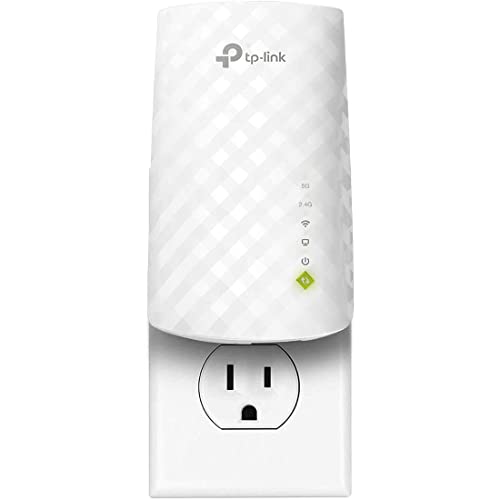
Pros
- Supports both 2.4 GHz and 5 GHz bands
- Includes Ethernet port and access point mode
- Multiple setup options
Cons
- Creates a separate WiFi network name
- Designed to improve coverage, not internet speed
- Who should skip it: shoppers seeking a speed upgrade

Pros
- Three-unit mesh system
- Single network name across units
- Six Gigabit Ethernet ports
- Wired Ethernet backhaul support
- Parental controls with family profiles
Cons
- Most providers require a separate modem
- Who should skip it: users seeking an all-in-one modem and router

Pros
- IP67-rated outdoor housing
- Active and passive PoE support
- Multiple operating modes
- Four detachable antennas
Cons
- PoE adapter must be installed indoors
- Mesh mode limited to WAVLINK products
- No app support; setup help requires contacting the seller

Pros
- Repeater and access point modes
- WPS and browser setup options
- Supports up to 55 devices, according to manufacturer
Cons
- 300Mbps listed transmission rate
- 802.11 b/g/n compatibility only
- Who should skip it: buyers needing higher listed speeds or newer WiFi standards
How to Extend Wi-Fi Range
Step 1: Find where coverage drops
Walk through the rooms and outdoor areas where you use Wi-Fi. Check whether the connection is weak everywhere or only beyond a particular wall, floor, or distance from the router.
Compare performance near the router with performance in the problem area using the same device and activity. A slow internet plan or a problem with the router can affect both locations, so an extender may not fix every slow connection.
Step 2: Improve your router’s placement
Place the router in an open, central location when practical, rather than inside a cabinet or behind large objects. Keep it away from common sources of obstruction, such as thick walls and large metal items.
Make one change at a time, then check coverage again. If the weak area remains, use the Wi-Fi router category to explore router options, or continue with a coverage device.
Step 3: Choose the right type of device
A plug-in extender can suit a limited indoor dead zone. A mesh system uses multiple units to create one network across a home, while an outdoor access point is intended for exterior coverage and may use a wired connection and PoE.
Check the Wi-Fi standard, supported bands, Ethernet port speed, setup method, and compatibility with your current network. Manufacturer coverage and device-capacity figures are claims, not guarantees for every home. For more options, browse Wi-Fi extenders and the broader networking category.
Step 4: Set up the device using its instructions
Follow the device maker’s setup instructions and connect the extender or mesh system to your existing network. Depending on the model, setup may use an app, a web interface, WPS, or a wired connection.
Use your existing Wi-Fi credentials where the device supports them, and check whether it creates a separate network name. For example, the TP-Link RE220 listing says its extender creates a separate SSID. Do not assume roaming will work the same way across unrelated brands or models.
Step 5: Place the extender between router and dead zone
Put a wireless extender where it can still receive a usable signal from the router, not deep inside the dead zone. If it receives a poor connection, it cannot reliably relay a strong one to the far room.
Use the device’s signal indicators or instructions to adjust its position. Avoid placing it where furniture or walls block the path between it and the router or the area you want to cover.
Step 6: Use Ethernet backhaul when available
If you can run Ethernet to the coverage device, check whether it supports access point mode or wired backhaul. This connects the device to the network by cable instead of relying on a wireless link from the router.
Confirm port speed before connecting devices that need a wired link. The TP-Link RE220 listing specifies a 100 Mbps Ethernet port, while the Deco S4 listing specifies Gigabit Ethernet ports and wired backhaul support.
Step 7: Check coverage and adjust
Reconnect your phone, computer, or other device and check the rooms or outdoor spots where the connection was weak. Test the activities you care about, such as a video call or streaming, rather than relying only on a signal indicator.
If coverage is still poor, move the extender closer to the router or adjust mesh unit placement. Confirm the correct network is selected, and consult the manufacturer’s support instructions if the device will not connect.
Common Mistakes to Avoid
Do not place a wireless extender where the router signal is already unusable. That location may extend the dead zone rather than fix it.
Do not expect an extender to increase the speed provided by your internet plan. A stronger signal can improve reliability in a weak area, but wireless relaying can reduce available throughput.
Do not assume all extenders create one network name or support mesh roaming with any router. Check the model’s instructions and compatibility details before buying.
For outdoor equipment, follow the maker’s installation instructions. The WAVLINK listing says its PoE adapter is not waterproof and should be installed indoors; do not expose it to rain or other moisture.
Recommended Gear
Explore more Wi-Fi extenders if you need a different model or setup. These options fit distinct coverage needs:
TP-Link WiFi Extender (RE220) with Ethernet Port: Its dual-band Wi-Fi 5 support, WPS or app setup, and Ethernet port suit a modest indoor coverage gap. The listing says it creates a separate SSID, and its Ethernet port is specified at 100 Mbps. Who should skip it: shoppers who need a single network name or a faster wired port.
TP-Link Deco S4 Mesh AC1900 WiFi System: Its three units create a mesh network with one network name, and the listing specifies Gigabit ports and wired backhaul support. It may suit whole-home coverage better than a single plug-in extender. Who should skip it: shoppers who only need to cover one small dead zone or specifically need Wi-Fi 6.
2026 WAVLINK AX1800 Outdoor WiFi 6 Extender Long: This outdoor access point lists IP67 weather protection, PoE support, and several operating modes for yards, farms, or garages. Its mesh mode is limited to WAVLINK products, it does not use an app, and the PoE adapter must stay indoors. Who should skip it: shoppers seeking a simple indoor plug-in extender or app-based setup.
Frequently Asked Questions
Will a Wi-Fi extender make my internet plan faster?
No. An extender is intended to improve coverage, not increase the speed supplied by your internet plan. A better signal in a dead zone can make a connection more usable, but a wireless extender may also reduce throughput.
Where should I put a range extender?
Place it between the router and the weak area, where it can still receive a usable router signal. Adjust its position based on the device’s indicators and your connection in the target room.
Is a mesh system different from an extender?
Yes. A mesh system uses multiple coordinated units and can provide one network name across its coverage area. A conventional extender may create a separate network name, so check the specific product details.
Can I extend Wi-Fi to a yard or garage?
Outdoor access points are designed for exterior coverage. Check the weather rating, connection and power needs, installation guidance, and compatibility before mounting equipment outside. The WAVLINK listing specifies PoE support and says its power adapter must remain indoors.
Will an extender work with my router?
Compatibility depends on the extender and router. Check the supported Wi-Fi standards, bands, setup requirements, and mesh restrictions. A product’s ability to connect to a router does not guarantee a single network name or coordinated roaming.




Write Your Review
No reviews yet. Be the first to share your experience!