

School tablets need to handle more than one job: reading course material, joining video calls, taking notes, and running the apps a class requires. A large display can make documents easier to view, while a smaller device may be easier to carry; pen support, storage, operating system, and accessory compatibility also change what works for each student.
This guide to the best tablet for school compares five options for different ages, budgets, and study habits. Check your school’s app requirements before choosing, especially if assignments depend on Google Play apps, specific file formats, or a keyboard.

Pros
- Sharp 12.7-inch 3K display with eye-care modes
- Includes stylus pen and protective folio case
- Efficient MediaTek Dimensity 8300 processor
- Quad JBL speakers with Dolby Atmos audio
Cons
- Base 128 GB storage limits large media collections
- Weighs over 1.3 pounds without the case attached
- Users needing massive local storage should skip it

Pros
- Crisp 10.1-inch 1080p Full HD screen
- Expandable storage up to 1 TB via microSD
- Durable build using strengthened aluminosilicate glass
- Built-in parental controls through Amazon Kids
Cons
- Compatible stylus pen sold separately
- May arrive in generic Amazon packaging
- Amazon Kids+ content requires paid subscription

Pros
- Includes durable bumper case with built-in adjustable kickstand
- Preloaded software manages app permissions and screen time
- Expandable storage supports micro memory cards up to 1TB
- Ships with dedicated stylus for doodling and writing
Cons
- Entry-level processor unsuited for heavy multi-tasking or intensive gaming
- Micro memory expansion card is sold separately
- Families wanting high-end multimedia performance should skip it

Pros
- Large 13-inch 1920x1200 IPS display
- Comprehensive accessory bundle with keyboard and mouse
- Generous 256GB internal storage with expansion support
- Substantial 10000mAh battery capacity
Cons
- Total RAM relies heavily on virtual memory expansion
- Unisoc T615 processor limits demanding productivity workloads
- Heavy users and high-end gamers should skip it
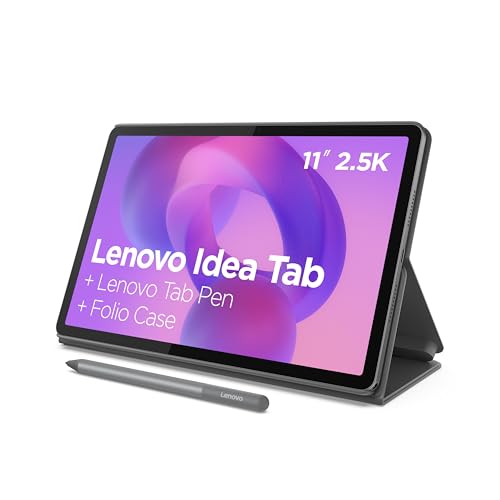
Pros
- Sharp 11-inch 2.5K display with 90Hz refresh rate
- Included Tab Pen stylus and folio case
- Large 256GB internal storage and 8GB memory
- Quad speakers tuned with Dolby Atmos
Cons
- 20W wired charging speed limits quick battery refills
- Demanding 3D gamers should skip entry-level graphics chip
The Best Tablets for School by Use Case
Best for Large-Screen Study: Lenovo Idea Tab Pro with Google Gemini
The Lenovo Idea Tab Pro with Google Gemini pairs a 12.7-inch 3K LCD display with an included Tab Pen Plus and folio case, making it a strong fit for students who want room to read slides, annotate material, and switch between study and media. The listing specifies 8 GB of memory, 128 GB of storage, a MediaTek Dimensity 8300 processor, and Wi-Fi 6E. Lenovo claims up to 11 hours of video streaming, but battery life will vary with use. Compare it with other tablet options if you are weighing screen size against portability.
Reasons to buy:
- The included pen and folio case provide a ready-made setup for handwriting and carrying.
- The 12.7-inch 3K screen gives notes and documents more viewing space than the smaller models here.
- Quad JBL speakers with Dolby Atmos are listed for lecture playback and entertainment.
Reasons to avoid:
- Its large screen may be less convenient to carry than an 11-inch tablet.
- The listed 128 GB capacity may not suit students who keep large video or course-file libraries locally.
Skip it if you want the smallest, lightest option or need more built-in storage than the listing specifies.
Best for Note-Taking Apps: Lenovo Idea Tab, College Tablet
The Lenovo Idea Tab, College Tablet is a more compact study choice, with an 11-inch 2.5K IPS touchscreen and a 90 Hz refresh rate. Its included Tab Pen and folio case, plus listed support for Lenovo AI Note, Squid, Nebo, and MyScript Calculator, make it especially relevant for students who annotate readings or work through handwritten calculations. The listing specifies 8 GB of memory and 256 GB of storage, twice the stated built-in capacity of the Idea Tab Pro above.
Reasons to buy:
- The pen and folio case are included, and the listed learning apps cover notes, handwriting, and calculations.
- Its 11-inch display is more compact than the 12.7-inch and 13-inch choices.
- Lenovo claims up to 12 hours of YouTube playback and lists a 20 W charger.
Reasons to avoid:
- The MediaTek Dimensity 6300 is a different processor from the Dimensity 8300 in the Idea Tab Pro; the listings do not provide comparable benchmark results.
- Confirm that the school’s required apps are available and work as expected on this Android tablet.
Skip it if you need a screen larger than 11 inches for split-screen reading or detailed documents.
Best Budget Option: Amazon Fire HD 10 tablet, built for relaxation
The Amazon Fire HD 10 tablet, built for relaxation, is a lower-cost route to a 10.1-inch 1080p screen for reading, streaming, and basic school tasks. Its listing describes it as a refurbished, certified Like-New device and says it includes the same limited warranty as a new device. However, the published product details conflict on memory: the title states 4 GB RAM, while feature text states 3 GB RAM. Confirm the exact configuration before buying, and check that required school apps are supported on Fire OS.
Reasons to buy:
- The 10.1-inch 1080p display suits reading and video lessons without the size of the largest tablets here.
- Storage is listed as 32 GB, with microSD expansion up to 1 TB; the card is sold separately.
- Amazon Kids parental controls may help families manage a younger student’s access.
Reasons to avoid:
- The published listing gives inconsistent RAM figures, so verify the specific unit details.
- Fire OS app access differs from standard Android with Google Play; confirm every required app before purchase.
Skip it if your coursework depends on Google Play apps that are not available through Amazon’s app ecosystem, or if you want an included pen.
Best for a Young Student: Android 16 Kids Tablet HD 10 Inch with Stylus
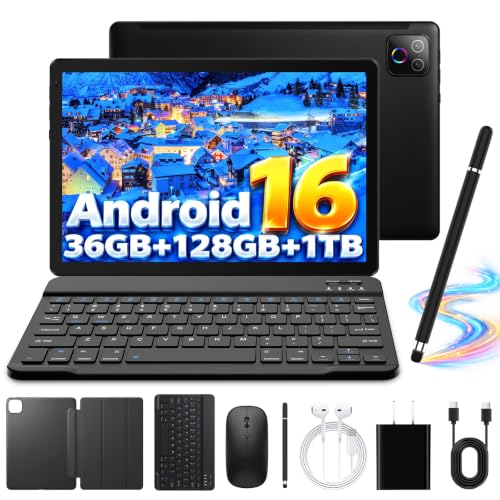
The Android 16 Kids Tablet HD 10 Inch with Stylus is designed for children ages 3 to 12, with a 10-inch HD display, a protective case with an adjustable stand, and a stylus. The listing describes UKIDOZ Kids Space and parental controls for screen-time limits, app permissions, and content filtering. That makes it more suited to supervised learning and age-appropriate apps than to a student who needs a conventional college workflow.
Reasons to buy:
- The included case and stylus support drawing, writing practice, and viewing the screen on a stand.
- Parental controls are listed for managing screen time, app permissions, and filtered content.
- The listing specifies 64 GB of storage and microSD expansion up to 1 TB, with the card sold separately.
Reasons to avoid:
- The listing’s “24 GB RAM” claim is not explained as a standard memory configuration; verify actual memory details and app requirements with the seller.
- The 10-inch HD display is a more modest specification than the higher-resolution screens on the Lenovo models.
Skip it if you are shopping for a high-school or college student who needs a standard productivity tablet and broad app compatibility. For more child-focused options, see our guide to tablets for kids.
Best for Keyboard-Based Work: 13 Inch Tablet with Keyboard – Android 16 Tablet
The 13 Inch Tablet with Keyboard – Android 16 Tablet bundles a keyboard, mouse, stylus, foldable case, and screen protector with a 13-inch IPS display. It may suit a student who wants a large screen and included accessories for drafting documents or working at a desk. The listing specifies Android 16, a UNISOC T615 processor, 256 GB of storage, and a 10,000 mAh battery, but does not establish how well the tablet performs with particular school applications.
Reasons to buy:
- The keyboard, mouse, stylus, case, and screen protector are listed as included accessories.
- The 13-inch 1920 × 1200 IPS display offers substantial space for documents and split-screen use.
- The listing specifies 256 GB of storage and microSD expansion up to 2 TB; the card is sold separately.
Reasons to avoid:
- The tablet’s large format may be cumbersome for students who carry it between classes all day.
- Confirm keyboard layout, language, and compatibility with your required apps before relying on the bundle for coursework.
Skip it if you prefer a compact tablet with established note-taking accessories or do not need the bundled keyboard and mouse.
How to Choose the Best Tablet for School
Check school app and operating-system requirements
App compatibility is often more important than a headline processor claim. Ask your school which learning platform, browser, document tools, and video-call apps students must use, then check those apps against the tablet’s operating system. The two Lenovo models and the two Android 16 listings run Android, while the Fire HD 10 uses Amazon’s Fire tablet software. Do not assume an app works because a listing mentions a large app catalog; verify the exact app and any required features.
Also check whether coursework needs desktop-only software, particular browser extensions, or file-handling features. A tablet can be useful for reading and note-taking without replacing a laptop for every course. If the school’s instructions name a specific operating system or keyboard setup, treat that as a requirement rather than a preference.
Match screen size to reading and carrying
A larger display can make lecture slides, PDFs, and two apps easier to view, but it takes up more space in a backpack and on a small desk. The 12.7-inch Lenovo Idea Tab Pro and 13-inch JJGJ tablet are the large-screen choices; the 11-inch Lenovo and 10-inch options are more compact on paper. Screen size alone does not establish image quality: compare the listed resolution and panel type too.
The Idea Tab Pro lists a 3K LCD, while the college Idea Tab lists a 2.5K IPS display. The JJGJ model specifies a 1920 × 1200 IPS screen, and the kids’ tablet lists an HD display. Consider the text and diagrams you need to read, then check the full resolution in the product details. If possible, assess whether your usual documents will remain legible at the viewing scale you prefer.
Decide whether handwriting or typing matters more
An included stylus can save a separate accessory purchase and make handwriting, markup, or drawing more convenient. Both Lenovo models list a pen and folio case; the kids’ tablet includes a stylus and protective case. The JJGJ bundle lists a stylus and keyboard, while the Fire HD 10’s optional stylus is sold separately. Included accessories still need to match your work: verify pen support in the apps you plan to use, and check keyboard layout and language if typing is central to your classes.
For long essays or spreadsheet work, a keyboard may be more useful than a pen. For annotated readings and handwritten equations, pen support may matter more. A tablet keyboard bundle can help with desk-based work, but a large screen and keyboard may be less convenient for carrying between lectures.
Compare storage, memory, and expansion carefully
Storage holds apps, downloads, and offline course files. The listed built-in capacities range from 32 GB on the Fire HD 10 to 256 GB on the college Idea Tab and JJGJ tablet. The Fire HD 10, kids’ tablet, and JJGJ model list microSD or TF-card expansion, but cards are sold separately where stated. Check whether your school permits external storage and whether apps can use it; expandable space does not necessarily replace built-in storage for apps.
Memory claims also deserve close reading. The Fire listing conflicts between 3 GB and 4 GB RAM, and the kids’ tablet advertises “24 GB RAM” without explaining the figure. Verify the actual memory specification rather than treating a headline number as directly comparable. The Lenovo listings state 8 GB memory, giving you clearer figures to compare within this group.
Read battery and connectivity claims in context
Battery details can help plan a school day, but manufacturer playback estimates are not guarantees for mixed use with Wi-Fi, video calls, screen brightness, and note-taking. Lenovo claims up to 11 hours of video streaming for the Idea Tab Pro and up to 12 hours of YouTube playback for the college Idea Tab. The JJGJ and kids’ tablet listings give battery capacities but no comparable runtime figure. For any model, check the included charger details and plan for your actual class schedule.
Connectivity matters for course platforms, campus Wi-Fi, and wireless accessories. The Idea Tab Pro lists Wi-Fi 6E, the kids’ tablet lists Wi-Fi 6, and the JJGJ listing specifies dual-band 2.4 GHz and 5 GHz Wi-Fi. These labels do not guarantee a particular connection speed on your campus network. Confirm the network requirements and whether your school restricts device access or requires a managed account.
How We Compared
We compared the published product listings, focusing on screen size and resolution, processor and memory details, storage and expansion, operating system, battery claims, connectivity, and included accessories. We also considered stated use cases, such as pen-based study, keyboard work, entertainment, and child-focused controls. The published ratings show no written customer feedback, so they do not establish recurring ownership experiences. Where product details conflict or use unclear memory claims, we call out what shoppers should verify rather than treating those figures as settled specifications.
Frequently Asked Questions
Can a tablet replace a laptop for school?
It depends on your courses. Tablets can handle reading, note-taking, web research, and many document tasks, but some classes may require desktop software, browser extensions, or file workflows that a tablet does not support. Check your school’s published requirements before treating any model here as a laptop replacement. A keyboard helps with typing, but it does not guarantee compatibility with every course tool.
Which option is suited to handwritten notes?
The Lenovo Idea Tab Pro with Google Gemini and Lenovo Idea Tab, College Tablet both list an included pen, and their listings name study or note-taking features. The JJGJ tablet and kids’ tablet also list a stylus. Verify that the specific note-taking app you need supports the tablet and pen before purchase. The Fire HD 10 listing says its stylus is sold separately.
Is the Amazon Fire HD 10 suitable for school apps?
It may suit reading, streaming, and school tasks that use supported apps, but Fire OS is different from standard Android with Google Play. Confirm that every required learning, document, and video-call app is available and has the needed features. Also check the exact RAM specification, since the published listing states both 3 GB and 4 GB.
Do these tablets include everything needed for class?
Not necessarily. The Lenovo models list a pen and folio case, while the JJGJ tablet lists a keyboard, mouse, stylus, case, and screen protector. The Fire HD 10’s stylus is separate, and the kids’ tablet lists a case and stylus. None of these details confirms that a device includes school software, a microSD card, or every accessory your course may require. Check the current package contents and your school’s supply list.
How much tablet storage does a student need?
It depends on the number and size of apps, downloaded readings, videos, and other files you keep offline. The listed internal storage ranges from 32 GB to 256 GB. Expansion is listed for some models, but a card is sold separately where noted, and app storage behavior can vary. If you expect to keep many files on the tablet, favor more built-in space or verify the school’s approved cloud-storage options.
What should parents check before choosing a child-focused tablet?
Check the available parental controls, age suitability of the content service, app compatibility, and how adults can manage screen time and permissions. The kids’ tablet listing describes UKIDOZ Kids Space and parental controls, while the Fire HD 10 listing names Amazon Kids controls. Review the setup instructions and current service terms, and confirm that the tablet supports the educational apps your child’s school uses.
For broader tablet comparisons, browse our tablet category or see our guides to beginner drawing tablets and reading-focused devices.






Write Your Review
No reviews yet. Be the first to share your experience!