

Animation and illustration workflows differ: some artists want a screen they can draw on, while others prefer a lighter pen tablet connected to a computer. This guide to the Best Tablet for Animation and Drawing compares those approaches, plus device compatibility, shortcut controls, and the setup each option needs.

Pros
- Battery-free stylus requires no charging
- Compact, lightweight design weighs just 0.6 pounds
- Six programmable physical shortcut buttons
- Broad compatibility with Windows, Mac, Linux, and Android
Cons
- Incompatible with iOS devices like iPad and iPhone
- Small 6x4 inch active workspace restricts arm movement
Pros
- Battery-free pen with responsive tilt detection
- Generous 10 by 6.25-inch active surface
- Twenty-eight customizable shortcut keys
- Ambidextrous layout with driver rotation
Cons
- Incompatible with iPhone and iPad hardware
- Does not support Linux Wayland display servers
- Skip if using iOS or Wayland environments

Pros
- No computer needed for digital art creation
- Sharp 1920x1200 Full HD IPS display
- Battery-free stylus requires no charging
- Certified to FCC, CE, and GMS standards
Cons
- Claimed battery runtime limited to five hours
- Users needing full desktop operating systems should skip
Pros
- Factory calibrated display with Delta E under 1.5
- High 16384 pressure levels via PenTech 4.0 stylus
- Dual physical dials plus five customizable silent keys
- Full-laminated etched glass cuts glare and parallax
Cons
- Requires host computer or Android device to function
- Standalone mobile sketchers should skip this tethered display
Pros
- Fully laminated screen minimizes cursor parallax
- High pen pressure sensitivity with 16,384 levels
- Customizable red dial and eight shortcut keys
- Adjustable desk stand included in the package
Cons
- Requires tethered computer connection to function
- Who should skip: artists needing standalone mobile tablets
The Best Drawing Tablets by Use Case
Best for a Standalone Setup: Frunsi RubensTab T11 Pro standalone Drawing Tablet
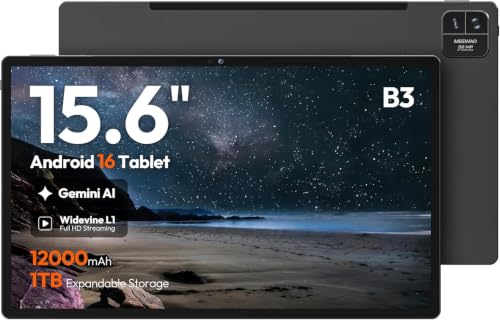
The Frunsi RubensTab T11 Pro standalone Drawing Tablet is the only self-contained drawing device in this group. Its 10.1-inch Full HD IPS display, included pressure-sensitive pen, and pre-installed drawing apps let you create without connecting a computer, which suits students or artists who want a portable workspace.
Reasons to buy:
- Standalone operation avoids the need for a separate computer while drawing.
- The 1920 × 1200 display provides a visible canvas for sketching and illustration.
- The listing states up to five hours of use from its 5800mAh battery and USB-C charging.
Reasons to avoid:
- The listed battery runtime is a manufacturer claim, and actual use may vary.
- The product data does not specify its processor or memory, so verify that your preferred apps and projects suit the device before buying.
Skip it if your animation workflow depends on desktop software or files that need a computer-based setup.
Best for Color-Focused Computer Work: HUION Kamvas 13 (Gen 3) Drawing Tablet with Screen
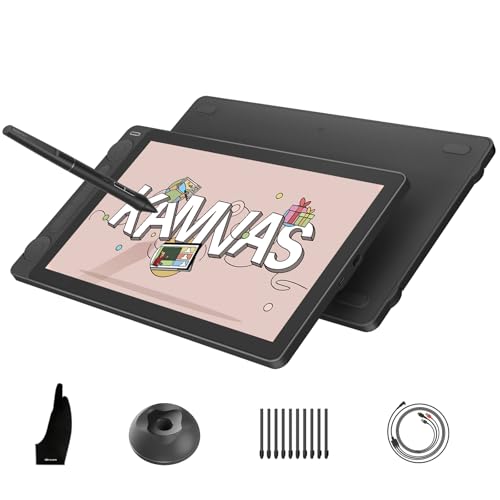
The HUION Kamvas 13 (Gen 3) Drawing Tablet with Screen is a 13.3-inch pen display for artists who want to draw directly on a computer-connected screen. Its full lamination, anti-glare Canvas Glass 2.0, factory-calibrated color, and dual dials suit illustration and animation workflows where on-screen control and color coverage matter.
Reasons to buy:
- The listing specifies 99% sRGB/Rec.709 and 90% Adobe RGB coverage, with factory-calibrated ΔE<1.5 color accuracy.
- Two dials and five press keys provide direct controls for tasks such as changing brush size or adjusting frames.
- The pen supports 16,384 pressure levels, a 2g initial activation force, and tilt auto-alignment according to the listing.
Reasons to avoid:
- This is a pen display, not a standalone tablet; it must connect to a compatible computer or laptop to work.
- Android support is limited to devices supporting USB 3.1 Gen 1 and DP 1.2, so check the exact device and cable connection.
Skip it if you need a self-contained tablet or a drawing surface that works without a computer.
Best for a Larger Shortcut Pad: HUION Inspiroy H1060P Graphics Drawing Tablet
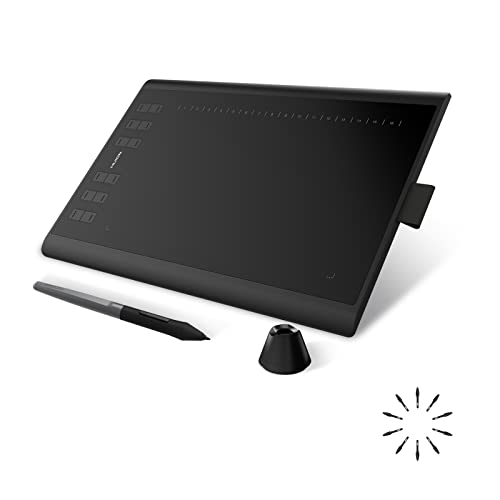
The HUION Inspiroy H1060P Graphics Drawing Tablet is a screenless pen tablet with a 10 × 6.25-inch active area. Its 12 programmable press keys and 16 programmable soft keys offer many places to assign animation or drawing commands, while the battery-free pen supports tilt for varied strokes.
Reasons to buy:
- The larger listed active area gives your hand more room than the compact H640P model.
- Programmable physical and soft keys can be assigned to frequent commands in the driver.
- It supports Windows, macOS, Android, and Ubuntu Linux with Xorg; the symmetrical design accommodates left- and right-handed use.
Reasons to avoid:
- There is no built-in display, so you draw on the tablet while viewing the result on the connected screen.
- A USB adapter is required for Mac connection. Ubuntu use requires Xorg, not Wayland.
Skip it if you want to see your pen strokes directly beneath the stylus or need a standalone device.
Best for a Compact Desk or Bag: HUION Inspiroy H640P 6×4 inch Drawing Tablet 8192
The HUION Inspiroy H640P 6×4 inch Drawing Tablet 8192 is a small screenless tablet for artists who prioritize portability over a large drawing surface. Its 6 × 4-inch active area, six customizable keys, and battery-free stylus make it a practical fit for sketching, notes, and basic creative work with a compatible computer or Android device.
Reasons to buy:
- The listing gives its weight as 0.61 lb and thickness as 0.3 inches, making it easy to carry.
- Its six shortcut keys can be assigned to commands, and the driver can save app-specific profiles.
- The pen lists 8192 pressure levels, 5080 LPI resolution, and a 233 PPS report rate.
Reasons to avoid:
- The active area is smaller than the H1060P, which may feel restrictive for broad gestures or detailed timeline work.
- It does not support iPhone or iPad, according to the product information.
Skip it if you need a large work surface, an integrated screen, or iPad compatibility.
Best for a Screen with Custom Controls: XPPen Artist 13.3 Pro V2 Drawing Tablet
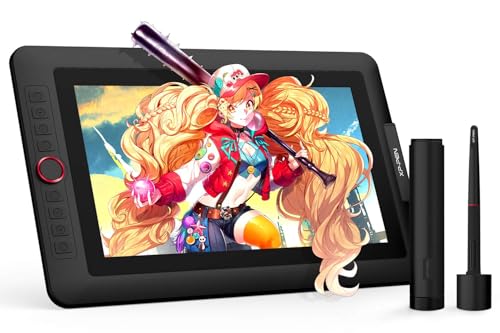
The XPPen Artist 13.3 Pro V2 Drawing Tablet is a 13.3-inch, full-laminated pen display that connects to a computer. Its red dial and eight customizable keys put common controls within reach, while the listing specifies a 123% sRGB color gamut and pen tilt support. It suits artists who want an on-screen drawing surface with physical shortcuts.
Reasons to buy:
- The dial can control tasks such as zooming, brush size, and canvas rotation.
- The included 3-in-1 cable connects the display to a computer, and the listing also cites Windows, Mac, Chrome OS, and Linux support.
- The battery-free stylus supports 16,384 pressure levels and up to 60 degrees of tilt, according to the listing.
Reasons to avoid:
- It cannot run independently; a compatible computer is required.
- The listed color coverage differs from the Kamvas 13 (Gen 3), so check which gamut figures best match your color workflow.
Skip it if you want a standalone tablet or prefer a screenless drawing pad.
How to Choose the Best Tablet for Animation and Drawing
Decide whether you need a standalone tablet or pen display
A standalone tablet runs its own drawing apps, so it can work without a separate computer. A pen display shows your computer’s output on its screen but depends on that computer. The Frunsi is the standalone option here; both 13.3-inch displays and the HUION pen pads need a host device. Check the product listing for explicit standalone status before you buy, since a screen does not mean a tablet can run apps by itself.
Match the active area or screen size to your gestures
A larger active area can give your arm more room for broad strokes, while a compact pad takes up less desk and bag space. The H640P lists a 6 × 4-inch active area; the H1060P lists 10 × 6.25 inches. The 13.3-inch models and Frunsi have screens, but screen size alone does not establish how much room an app’s canvas or interface leaves for drawing. Check the stated dimensions and consider where you will place the device.
Check pen response and shortcut controls
Pressure sensitivity, tilt support, and initial activation force describe different aspects of pen input. They can help you judge whether a listed pen offers the controls your drawing style uses, but they do not prove how every app will feel. Compare the exact pen features: the H1060P lists tilt support and a battery-free stylus, while the two screen models specify 16,384 pressure levels. Shortcut controls also vary, from the H640P’s six keys to the H1060P’s physical and soft keys and the screen models’ dials or keys. Look for support in both the tablet driver and your animation software.
Verify computer, phone, and operating system compatibility
Compatibility can rule out a device before screen or pen features matter. The HUION pads list Android support but exclude iPhone and iPad; the H1060P also notes that its cursor does not currently appear on Samsung Galaxy S-series phones. The Kamvas 13 (Gen 3) requires an Android device with USB 3.1 Gen 1 and DP 1.2 support. For computer use, check the exact operating system version, required adapters, and cable arrangement. Do not assume every USB-C port supports video output.
Read display and portability details against your workflow
For color-sensitive illustration, compare stated gamut and calibration details rather than relying on resolution alone. The Kamvas listing specifies color coverage and factory calibration; the XPPen listing provides its own gamut figures. These manufacturer specifications are not a guarantee that colors will look identical across devices. For mobile sessions, compare the self-contained Frunsi’s stated battery claim with screenless pads that connect to a separate device. Check what your animation app needs and whether you can charge or connect the device where you plan to work.
How We Compared
This comparison uses the published product descriptions and specifications, including active area or display size, pen features, shortcut controls, connection requirements, operating system compatibility, and stated battery information. We considered customer feedback only where supplied; no individual ratings were treated as proof of repeated performance. Recommendations reflect the listed features and the different needs of standalone, screen-based, and screenless workflows.
Frequently Asked Questions
Can a drawing tablet be used for animation?
Yes, if the tablet works with your animation software and connected device. A pen tablet or pen display provides pen input, but the product information does not establish compatibility with every animation program. Check the software’s operating system and tablet-driver requirements before choosing.
What is the difference between a pen tablet and a pen display?
A pen tablet has a drawing surface without a built-in screen, so you view your work on a connected computer or device. A pen display puts the drawing surface on a screen. The screen models in this guide still connect to a computer, while the Frunsi is listed as standalone.
Do the HUION drawing pads work with an iPad?
No. The product information for both HUION pads says they do not support iPhone or iPad. Their listed Android compatibility does not imply iPad support, so choose a device that explicitly lists the operating system and model you plan to use.
Can I use the HUION Kamvas 13 (Gen 3) without a computer?
No. The listing identifies it as a pen display, not a standalone product, and says it must connect to a computer or laptop. Its Android connection support applies only to compatible devices meeting the stated USB and display requirements.
Which option makes sense for drawing while traveling?
The Frunsi can operate without a separate computer, and its listing states up to five hours of use, though actual runtime can vary. The H640P is a compact, lightweight pad, but it still needs a compatible host device. Choose based on whether you prioritize an independent screen or a small accessory for a device you already carry.




Write Your Review
No reviews yet. Be the first to share your experience!