

Pairing JBL earbuds usually takes only a few minutes. The process involves charging the earbuds, placing them in pairing mode, selecting them from your phone or computer, and confirming the connection.
This guide explains how to pair JBL earbuds across common phones, tablets, and computers. Menu names can vary by device and JBL model, so use the product manual or JBL support page when your controls differ.
What You Need
You need JBL earbuds with enough charge, the charging case if your model uses one, and a phone, tablet, or computer with Bluetooth enabled. Keep the earbuds close to the device during setup. Turn off Bluetooth on nearby devices that may reconnect to the earbuds first.
How to Pair JBL Earbuds
Step 1: Charge and prepare the earbuds
Place both earbuds in their case and confirm that they have charge. If the case has a charging cable or charging port, use the charging method listed in the manual. Remove any protective film from new charging contacts if the instructions mention one.
Keep the earbuds and case dry. Do not charge wet earbuds, use damaged cables, or force a connector into the case. If the case becomes unusually hot, stop charging and follow JBL safety guidance.
Step 2: Open Bluetooth settings
Open Bluetooth settings on your phone, tablet, or computer. Make sure Bluetooth is on, then remain on the screen that shows nearby devices. On many phones, this appears under Settings, Connections, or Network and internet options.
Keep the source device within a few feet of the earbuds during setup. Bluetooth menus differ between Android, iPhone, Windows, and Mac devices, but the pairing process follows the same basic pattern.
Step 3: Put the earbuds in pairing mode
Remove the earbuds from the case, or open the case if that is how your model starts pairing. Many JBL earbuds enter pairing mode automatically during first setup. Others use a touch control, physical button, or a case button.
Look for a flashing indicator or an audio prompt. The exact control and timing vary by model, so check the JBL manual if the earbuds do not appear in the Bluetooth list. Do not press controls repeatedly without checking the instructions, because some actions can power off the earbuds or reset their connection data.
Step 4: Select the JBL earbuds
Find the JBL earbuds in the available device list and select the entry that matches the name shown in the manual or on the packaging. Wait for the status to change from available or pairing to connected.
If your device asks for confirmation, approve the pairing request. If it asks for a PIN, check the JBL instructions rather than guessing. Most modern Bluetooth earbuds do not need a manually entered code, but model procedures can differ.
Step 5: Confirm sound output
Play a short piece of audio at a comfortable volume. Check that sound comes through both earbuds and that the source device shows the JBL earbuds as the active output.
If music plays through the phone or computer speaker, open its audio output controls and select the connected earbuds. A Bluetooth connection can remain active while another output is still selected.
Step 6: Pair with another device
Disconnect the earbuds from the first device, or turn off Bluetooth on that device. Then place the earbuds back into pairing mode and select them from the second device’s Bluetooth list.
Some JBL models support connection with more than one device, while others switch between devices instead. Do not assume that a model supports simultaneous connections. Check the product manual for multipoint or device-switching details.
Step 7: Reconnect after setup
After initial pairing, opening the case or removing the earbuds may reconnect them automatically when Bluetooth is enabled. If they do not reconnect, open the device’s saved Bluetooth list and select the JBL earbuds manually.
Keep the earbuds charged and avoid leaving them connected to a device you are not using. When automatic reconnection behaves differently from the manual, consult JBL support for your exact model.
Common Mistakes to Avoid
Do not select a similarly named Bluetooth device by mistake. Read the full device name and remove old saved entries if several JBL listings appear. An outdated saved connection can prevent a fresh pairing attempt.
Do not leave the earbuds connected to another phone, tablet, or computer nearby. That device may claim the connection before your intended source can find it.
Do not repeatedly reset the earbuds as a first step. A reset can remove saved connections and may require you to pair again with every device. Try Bluetooth off and on, a fresh pairing mode, and a full charge first.
Do not clean charging contacts with water, household chemicals, or sharp metal objects. Follow JBL cleaning instructions, and stop using the earbuds if the battery, case, or charging port appears damaged.
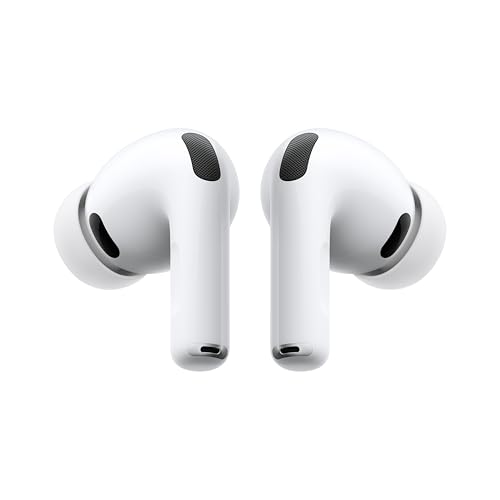
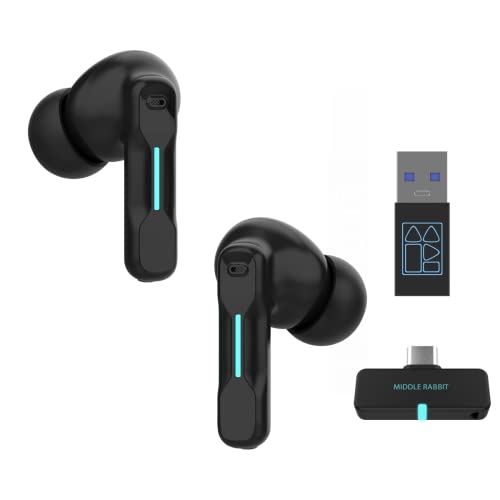
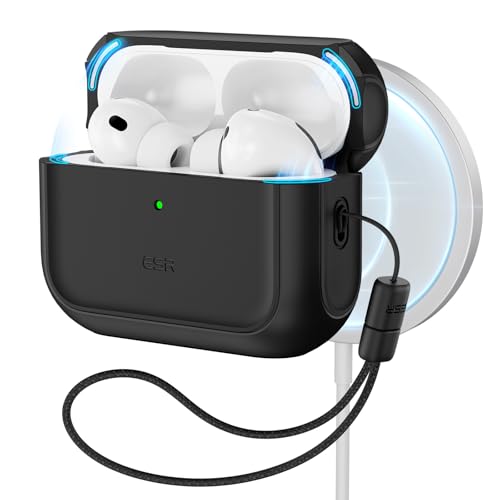
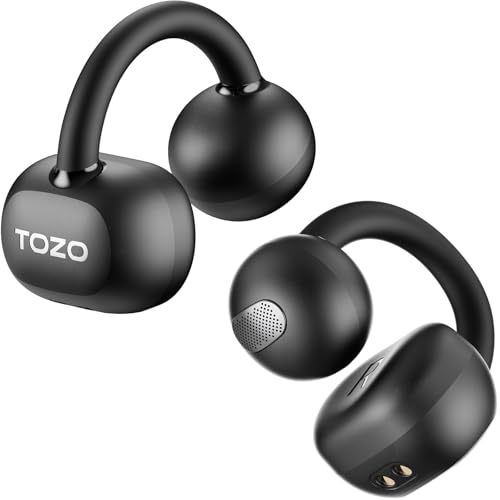
Recommended Gear
Frequently Asked Questions
Why are my JBL earbuds not showing in Bluetooth?
Confirm that the earbuds have charge and are in pairing mode. Turn Bluetooth off and on, move the earbuds closer to the source device, and disconnect nearby devices that may already be using them. If the earbuds still do not appear, follow the model’s reset procedure in the JBL manual.
How do I reconnect JBL earbuds after pairing?
Turn on Bluetooth, open the saved device list, and select the JBL earbuds. If they connect to another device instead, disable Bluetooth on that device or disconnect the earbuds there first.
Why is only one JBL earbud working?
Return both earbuds to the case, confirm that both are charging, and try pairing again. Check the device’s audio balance and accessibility settings. If one earbud remains unavailable, use the model-specific reset instructions from JBL.
Can JBL earbuds connect to a computer?
Yes, a computer with Bluetooth can generally pair with compatible wireless earbuds. Open Bluetooth settings, place the JBL earbuds in pairing mode, and select them. You may also need to choose them as the computer’s audio output and microphone device.
When should I check the JBL manual?
Check the manual when pairing controls, indicator lights, reset steps, multipoint support, charging behavior, or compatibility are unclear. Contact JBL support if the earbuds will not charge, show damage, overheat, or fail after the documented reset process.


Write Your Review
No reviews yet. Be the first to share your experience!