

A sharp webcam image depends on more than a 4K label. Frame rate, autofocus, lighting, field of view, and how you plan to frame your stream all affect which camera fits your setup. This guide compares the best webcam for streaming on Twitch options by supported features and intended use, from wide-angle views to close-up product demonstrations.
Check your computer’s available USB connection and decide whether you need a webcam microphone or will use a separate headset. For more camera accessories, see our guide to smartphone tripods for content creators, or browse the full webcam category.

Pros
- Full HD 1080p video
- Integrated sliding privacy shutter
- Built-in microphone
- Compatible with major video-call platforms
Cons
- USB-A connection may not suit USB-C-only devices
- Skip if your setup lacks USB-A and a suitable adapter

Pros
- 4K at 30 fps and 1080p at 60 fps
- PDAF autofocus
- Adjustable 1080p field of view
- Built-in privacy cover
Cons
- 4K field of view is fixed at 73°
- Who should skip it: users needing adjustable framing at 4K

Pros
- 1080p at 60fps
- Face autofocus
- Built-in fill light
- Privacy cover
Cons
- Who should skip it: users needing more than 1.7 meters of cable reach
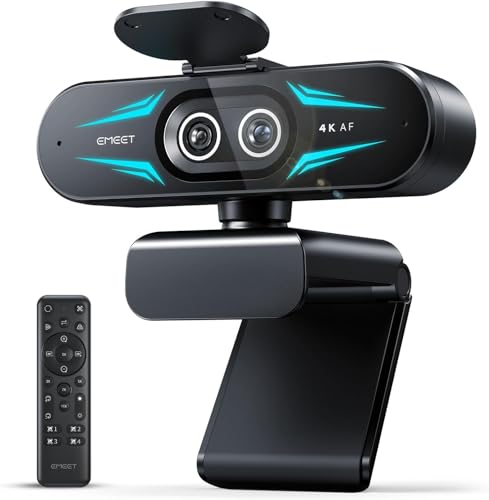
Pros
- Wide-angle and telephoto camera views
- Remote and software image controls
- Two built-in omnidirectional microphones
- Windows and macOS compatibility
Cons
- Zoom unavailable in 4K, 60FPS, and YUY2 modes
- Skip it if you need zoom while recording in 4K

Pros
- 4K video at 30 fps
- PDAF autofocus
- Physical privacy cover
- Tripod-compatible 1/4-inch mount
Cons
- Who should skip it: users needing adjustable field of view

Pros
- 4K at 30 fps
- 1080p at 60 fps
- PDAF autofocus
- Physical privacy shutter
- USB-A to USB-C adapter included
Cons
- No built-in speakers
- Who should skip it: buyers needing a webcam with speakers

Pros
- 1080p video at 30 frames per second
- Wide 110-degree field of view
- Includes privacy cover and tripod
- No additional driver required
Cons
- Skip if you need adjustable focus or a narrower view

Pros
- 4K video resolution
- Physical sliding privacy cover
- USB-A to USB-C adapter included
- Adjustable tilt and swivel
Cons
- Who should skip it: buyers needing frame-rate or autofocus specs
The Best Webcams by Use Case
Best for Adjustable Close-Ups: EMEET C60E Dual-Camera 4K Webcam for Streaming
The EMEET C60E Dual-Camera 4K Webcam for Streaming suits creators who switch between showing themselves and presenting a close-up. Its wide-angle and telephoto cameras support a listed maximum 11X hybrid zoom, and the remote or EMEET STUDIO software can adjust framing without moving the webcam. The listing says zoom is unavailable in 4K, 60FPS, and YUY2 modes, so check the resolution and frame-rate combination you plan to use before choosing it. See the EMEET C60E Dual-Camera 4K Webcam for Streaming.
Reasons to buy:
- Two cameras support switching between wide scenes and close-up views.
- Remote control and EMEET STUDIO provide ways to adjust zoom and image settings.
- Two omnidirectional microphones are specified for voice pickup within a 9.8-foot radius.
Reasons to avoid:
- Zoom does not work in listed 4K, 60FPS, or YUY2 modes.
- The telephoto camera has a recommended subject distance of 13.8 inches.
Skip it if you want a basic fixed-view webcam or need zoom while streaming in 4K.
Best for 60FPS Resolution Options: Acer A640 4K Webcam with AI Noise Canceling Mic
The Acer A640 4K Webcam with AI Noise Canceling Mic is a fit for streamers who want to choose between 4K at 30 frames per second and 2K or 1080p at 60 frames per second. Its listing specifies a Sony 1/2.8-inch sensor and PDAF autofocus, plus an AI noise-canceling microphone. To use that microphone, select the A640 as the default input in both computer settings and your streaming app, and confirm microphone permissions are enabled. See the Acer A640 4K Webcam with AI Noise Canceling Mic.
Reasons to buy:
- Offers listed 4K at 30FPS and 2K or 1080p at 60FPS modes.
- PDAF autofocus is specified to lock focus quickly.
- Includes a USB-A to USB-C adapter and a physical privacy shutter.
Reasons to avoid:
- The listing says the webcam does not include built-in speakers.
- Microphone performance depends on selecting the correct input and granting app permissions.
Skip it if you do not want to configure a separate microphone input in your streaming software.
Best for 1080p60 and Low-Light Correction: NBPOWER 1080P 60FPS Streaming Camera Webcam
The NBPOWER 1080P 60FPS Streaming Camera Webcam targets streamers who prefer a listed 1080p, 60FPS mode over 4K resolution. It also includes autofocus, a fill light, and a noise-canceling microphone, giving it a useful feature mix for a desk setup where lighting or changing focus is a concern. The listing describes compatibility with OBS, YouTube, Zoom, Teams, and Skype, but you should confirm the camera appears as an input in your preferred streaming software. See the NBPOWER 1080P 60FPS Streaming Camera Webcam.
Reasons to buy:
- 1080p at 60FPS is specified for smoother motion than a 30FPS mode.
- A built-in fill light and low-light feature are listed.
- Includes autofocus, a privacy cover, and a noise-canceling microphone.
Reasons to avoid:
- Its listed maximum resolution is 1080p, not 4K.
- The published information does not specify a field of view.
Skip it if you need 4K capture or want a specified lens angle before buying.
Best for a Narrower Streaming Frame: EMEET S600 4K Webcam for Streaming
The EMEET S600 4K Webcam for Streaming offers 4K at 30FPS and 1080p at 60FPS, with PDAF autofocus and a built-in privacy cover. Its 73-degree field of view is fixed in 4K, while the listing says it can adjust from 40 to 73 degrees at 1080p. That narrower option can help keep more of a room outside the frame when you stream at 1080p, though the available framing changes with resolution. See the EMEET S600 4K Webcam for Streaming.
Reasons to buy:
- Offers 4K30 and 1080p60 modes.
- Adjustable 40-to-73-degree field of view is listed at 1080p.
- Includes two noise-reduction microphones and a built-in privacy cover.
Reasons to avoid:
- The field of view is fixed at 73 degrees in 4K.
- Advanced image and sound adjustments use optional EMEETLINK software.
Skip it if you need adjustable framing while capturing in 4K.
Best Value for a Simple 4K Setup: AOC 4K Webcam for PC, Streaming Computer Camera
The AOC 4K Webcam for PC, Streaming Computer Camera is a straightforward choice if you want listed 4K resolution, a wide 80-degree view, and plug-and-play connection. Its 360-degree swivel and 180-degree tilt support flexible positioning, while the sliding lens cover provides a physical way to block the camera. The product information does not list a 60FPS mode, so treat it as a 4K option rather than a high-frame-rate pick. See the AOC 4K Webcam for PC, Streaming Computer Camera.
Reasons to buy:
- Lists 4K video, automatic light correction, and a noise-reducing microphone.
- Wide 80-degree view with 360-degree swivel and 180-degree tilt.
- Includes a USB-A to USB-C adapter and a sliding lens cover.
Reasons to avoid:
- The published specifications do not state a frame rate for 4K.
- An 80-degree view may show more of your room than a tighter frame.
Skip it if you need a confirmed 60FPS mode or a narrower fixed view.
Also Considered
The EMEET C60E 4K Webcam for Streaming,PDAF may suit a single-camera setup that needs 4K30, PDAF autofocus, a fixed 73-degree view, and a flip privacy cover; its published information does not list a 60FPS mode.
The ZIQIAN 1080P Webcam with Microphone could suit buyers who want a 110-degree view and included tripod, but its fixed-focus design may be less useful if you move around on camera.
The Logitech Brio 101 Full HD 1080p Webcam is a simple 1080p option with auto-light correction and a privacy shutter; the published specifications do not state a frame rate.
How to Choose the Best Webcam for Streaming on Twitch
Choose resolution and frame rate together
Resolution describes image detail, while frame rate describes how many frames the camera captures each second. A 4K30 webcam may suit a relatively static face-cam, while 1080p60 can be a better match when you want more frequent motion updates. The Acer A640 lists both 4K30 and 1080p60 options, as do the EMEET S600 in its specified modes. Check the listing for the exact resolution and frame-rate combinations rather than assuming that a 4K label means 4K at 60FPS.
Match autofocus and framing to how you stream
PDAF autofocus is specified on the Acer A640 and both EMEET C60E models, while the NBPOWER listing describes face autofocus. Autofocus matters more if you lean toward the camera, hold objects up, or move during a broadcast. Field of view matters too: a wider angle can include more of your desk or room, while a narrower view can keep the frame focused on you. Compare the listed angle and whether it can change at your chosen resolution.
Decide whether a built-in microphone is enough
Built-in microphones can keep a simple setup tidy, but their presence alone does not establish how your voice will sound in your room. The Acer A640 lists AI noise cancellation, and EMEET S600 lists two noise-reduction microphones. If you already use a headset or separate microphone, prioritize camera features and check that your streaming software lets you select that audio device. For the Acer, the listing specifically says to select its microphone as the default input when you want to use it.
Check lighting, privacy, and connection needs
Automatic light correction appears in several listings, while the NBPOWER webcam additionally lists a fill light. These features can help adjust the image, but they do not replace checking your room lighting or positioning the camera well. A physical shutter or cover blocks the lens when you are off camera. For connections, confirm whether your computer has USB-A or USB-C and whether an adapter is included: Acer and AOC list USB-A to USB-C adapters, while the EMEET C60E listing specifies USB 2.0 Type-A.
How We Compared
We compared the published product information, including resolution and frame-rate modes, autofocus descriptions, fields of view, microphone features, privacy covers, mounting details, connection types, and stated platform compatibility. We used customer feedback only where it was supplied, but the product data provided no review details to assess. Recommendations reflect how the listed features fit different streaming needs, not a claim that one camera will produce the same results in every room or computer setup.
Frequently Asked Questions
Will these webcams work with Twitch?
The published listings name Twitch or streaming software compatibility for some models, including the EMEET dual-camera model and ZIQIAN webcam. For other models, confirm that your computer recognizes the camera and that your streaming software can select it as a video source. Compatibility can depend on your operating system, USB connection, and software setup.
Is 4K better than 1080p for streaming?
Not automatically. A 4K webcam can capture more image detail when used in a supported 4K mode, while a 1080p60 mode can capture motion at a higher listed frame rate than 4K30. Choose based on your stream format, computer setup, and whether detail or smoother motion is more important for your camera view.
Do I need autofocus for a Twitch webcam?
Autofocus is useful if you move, lean toward the camera, or show objects close to the lens. If you stay in one position, fixed focus may be adequate, provided the camera is placed at a suitable distance. Check whether the listing specifies PDAF, face autofocus, or fixed focus, and avoid assuming all autofocus systems behave identically.
Can I use a separate microphone with a webcam?
Yes, if your computer and streaming software let you select separate video and audio inputs. In the software’s settings, choose the webcam for video and your preferred microphone or headset for audio. This can be useful when you want to avoid relying on a camera’s built-in microphone.
What should I check before connecting a webcam?
Check operating-system compatibility, USB connector type, and whether your computer has an available port. Confirm whether any listed adapter is included, then select the webcam as the video source in your streaming program. If you plan to use its microphone, select that input separately and check the app’s microphone permissions.



Write Your Review
No reviews yet. Be the first to share your experience!