

A single USB-C connection can simplify a desk, but docking stations differ in monitor support, charging, and compatibility. Choosing the best docking station for work laptop use depends on your laptop’s USB-C capabilities, the number of screens you want, and the ports your desk needs.
This guide compares compact dual-monitor adapters with fuller desktop docks, including options for Windows and Mac users. Check your laptop’s display output and charging support before choosing: a dock cannot add features that its host computer does not support.

Pros
- Dual 4K display output for Windows systems
- Pass-through charging delivers up to 85 watts
- Dedicated 5Gbps USB-C and USB-A data ports
- Durable aluminum chassis with integrated braided cable
Cons
- Mirror mode only for dual monitors on macOS
- HDMI output capped at 30Hz refresh rate
- USB-C ports do not support video or charging

Pros
- Dual 4K 60Hz HDMI video output support
- Up to 85W pass-through laptop charging
- Includes both SD and microSD card slots
- Fast 5Gbps USB-A and USB-C data ports
Cons
- macOS supports mirrored display output only
- Power supply and charging cable not included
- Requires full-featured USB-C or Thunderbolt port

Pros
- Supports up to three external displays
- Six 10Gbps USB ports
- 100W laptop power delivery
- Gigabit Ethernet
Cons
- Mac M1 through M5 requires DisplayLink driver
- USB-C connection must support video output
- Who should skip it: gaming-console users and HDCP-protected 4K streamers

Pros
- Dual 4K at 60Hz HDMI video outputs
- Up to 90W pass-through laptop charging
- Four fast 5Gbps USB data ports
- Built-in SD and microSD card readers
Cons
- Mac users cannot extend independent dual displays
- Requires separate 100W power adapter for charging
- Short built-in cable limits placement flexibility
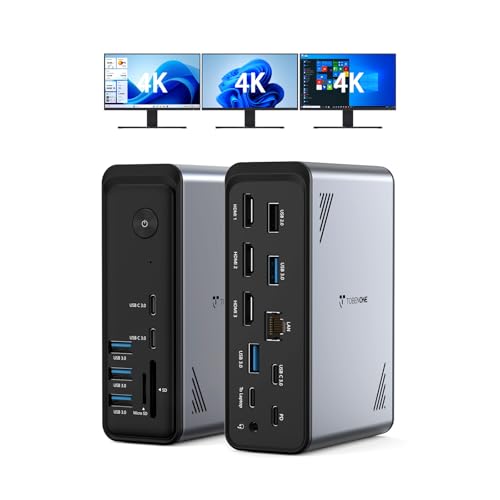
Pros
- Three HDMI outputs
- Nine USB ports
- Ethernet and card readers included
- Compact 4.9 x 3.5 x 1.6-inch body
Cons
- Power adapter not included
- Not recommended for Mac
- Who should skip it: Mac users or laptops without full-featured USB-C

Pros
- Includes 110W adapter supplying 100W host power
- Supports triple external displays on Windows systems
- Simultaneous SD and microSD card reading
Cons
- macOS supports display mirroring only, no extended mode
- Rear USB-C port handles data only, no video
- Mac users needing extended displays should skip device
The Best Docking Stations by Use Case
Best for a Three-Monitor Windows Desk: Acer 13-in-1 Laptop Docking Station
The Acer 13-in-1 Laptop Docking Station suits Windows users who want three display connections and a broad range of desk ports in one unit. Its HDMI and DisplayPort outputs support three independent screens on Windows through MST, while compatible laptops with Display Stream Compression (DSC) can support triple 4K at 30Hz, according to the listing. The package includes a 110W power adapter, and the dock supplies up to 100W to the host laptop.
It also adds Gigabit Ethernet, an audio jack, and an SD/TF reader that can read and write both cards simultaneously. The rear USB-C port is for data only, not video, monitor power, or Thunderbolt devices. Mac users get mirroring rather than an extended desktop, so this is a Windows-focused choice.
Reasons to buy:- Three independent displays on compatible Windows laptops.
- Includes a 110W power adapter and supports up to 100W laptop charging.
- Combines Gigabit Ethernet, audio, and simultaneous SD/TF card access.
- Mac extended desktop mode is not supported.
- Triple 4K at 30Hz depends on compatible laptop and GPU support for DSC.
Skip it if you use a Mac and need separate extended displays, or if your laptop lacks a full-featured USB-C port.
See the external monitor guide for MacBook Air if display selection is still part of your setup.
Best for DisplayLink Flexibility: WAVLINK Displaylink Docking Station 3 Monitors
The WAVLINK Displaylink Docking Station 3 Monitors is aimed at workspaces that need up to three external displays and several high-speed USB connections. The listing specifies one 4K 60Hz HDMI output and two 2K 60Hz outputs through HDMI or DisplayPort, plus six USB ports rated at 10Gbps individually. It also includes Gigabit Ethernet and a 130W power adapter, with up to 100W power delivery to the laptop.
MacBook M1 through M5 models require the DisplayLink driver, and the laptop’s USB-C port must support video output. That driver requirement makes this a different option from a simple plug-and-play USB-C hub. The listing also says it is not recommended for HDCP-protected 4K streaming or gaming, so its many display connections are better matched to office work than those tasks.
Reasons to buy:- Supports up to three external displays with specified 4K and 2K output modes.
- All six USB ports are listed at 10Gbps individually.
- Includes Gigabit Ethernet and a 130W power adapter.
- MacBook M1–M5 use requires the DisplayLink driver.
- Not recommended for gaming or HDCP-protected 4K streaming.
Skip it if you want a driver-free Mac setup or need a dock for gaming and protected 4K video.
Best for Many Peripherals on Windows: TobenONE 18 in 1 Laptop Docking Station 3
The TobenONE 18 in 1 Laptop Docking Station 3 is designed for Windows and ChromeOS users who want a large number of connections at one desk. Its listed ports include nine USB connections, three HDMI outputs, Ethernet, SD and microSD readers, audio, and power delivery. The listing advertises triple or dual 4K at 60Hz, but display results depend on the laptop’s USB-C, GPU, and operating system support.
This dock does not include a power adapter. The manufacturer says to connect a power supply over 65W for stable use, while its charging feature is described as 100W PD. It is not recommended for Mac users, making it a poor fit for mixed Mac and Windows households unless the dock will only serve a compatible Windows or ChromeOS laptop.
Reasons to buy:- Provides three HDMI outputs and a large set of USB and desk connections.
- Advertises dual or triple 4K at 60Hz for compatible setups.
- Includes Ethernet, SD/microSD readers, and an audio connection.
- No power adapter is included; the listing calls for a supply over 65W.
- Not recommended for Mac users.
Skip it if you need a Mac-compatible dock or prefer a package that includes its power adapter.
Best for Two 4K Displays: Selore USB C Docking Station Dual Monitor
The Selore USB C Docking Station Dual Monitor is a compact option for compatible laptops that need two HDMI connections, card readers, and everyday USB ports. The listing specifies two HDMI outputs up to 4K at 60Hz, two USB-A 3.0 ports, one USB-C data port, SD/microSD access, and up to 85W of laptop charging from its 100W PD input.
Windows users can extend across two monitors when the laptop supports MST. On macOS, the two HDMI outputs mirror rather than extend separate desktops. The dock also needs a full-featured USB-C or Thunderbolt port with video support, and the power adapter and charging cable are not included. Verify both monitor resolution support and laptop port capabilities before buying.
Reasons to buy:- Two HDMI outputs are listed for up to 4K at 60Hz.
- Windows MST can extend the desktop across two monitors on supported laptops.
- Includes SD/microSD readers and USB-A and USB-C data ports.
- macOS supports mirroring only, not two separate extended displays.
- Power adapter and charging cable are not included.
Skip it if you need extended dual displays on a Mac or your USB-C port does not support video output.
Best for a Compact Windows Desk: UANTIN USB C Docking Station Dual Monitor
The UANTIN USB C Docking Station Dual Monitor is a compact hub for adding display connections, card readers, and a mix of USB ports without moving to a larger desktop dock. It lists two HDMI outputs up to 4K at 30Hz, two USB-C data ports, three USB-A ports, SD/microSD slots, and 100W PD input with up to 85W delivered to the laptop.
Windows laptops can use MST for two independent extended displays when supported. Mac output mirrors the same content, so Mac users who need separate desktops should look elsewhere. The USB-C data ports do not charge devices or carry video, which matters if you plan to connect another display through one of them.
Reasons to buy:- Provides two HDMI outputs, card readers, and five USB-A/C data connections.
- Supports Windows MST extended displays on compatible laptops.
- Delivers up to 85W to the laptop from a 100W PD input.
- HDMI outputs are specified up to 4K at 30Hz.
- Mac output mirrors, and USB-C data ports do not support video or charging.
Skip it if you need 4K at 60Hz, extended dual displays on macOS, or video from a USB-C data port.
Best for a Built-In Security Lock: Acer USB-C Docking Station Dual Monitor
The Acer USB-C Docking Station Dual Monitor suits a desk where two HDMI connections and a built-in lock button are useful. It lists dual HDMI outputs up to 4K at 60Hz, three USB-A ports, one USB-C data port, SD/microSD readers, and up to 90W of laptop charging when paired with a suitable 100W-or-higher power adapter. The adapter is not included.
The lock button is specified to lock Windows with one click and Mac with a three-second press. However, macOS can only mirror the same content across external monitors, and the listing describes limited display arrangements for Mac. This dock also needs a full-featured USB-C port with DisplayPort Alt Mode, plus compatible laptop, cable, and monitor support for its stated display modes.
Reasons to buy:- Two HDMI outputs are listed up to 4K at 60Hz.
- Includes three USB-A ports and SD/microSD readers.
- Has a lock button for the connected device.
- A 100W-or-higher power adapter is needed and is not included.
- Mac external displays mirror rather than extend separate desktops.
Skip it if you need a supplied power adapter or separate extended displays on a Mac.
How to Choose the Best Docking Station for Work Laptop Setups
Check laptop port capabilities first
USB-C describes the connector, not every feature a laptop port can provide. Video output, USB data, and Power Delivery are separate capabilities. Check the laptop manufacturer’s specifications for DisplayPort Alt Mode or Thunderbolt support, video output, and USB-C charging before selecting a dock.
This compatibility check is especially important for the Selore, UANTIN, and Acer dual-monitor hubs, which depend on a full-featured USB-C connection for display output. A USB-C port that supports charging or data only may not send a picture to the monitors.
Match monitor count, resolution, and operating system
Start with the number of external screens you want to use and whether you need separate desktops or mirrored images. The compact dual-HDMI options are for two screens, while the Acer 13-in-1, WAVLINK, and TobenONE list three-screen support. The maximum output also varies: UANTIN lists up to 4K at 30Hz, while Selore and Acer’s dual-monitor model list up to 4K at 60Hz.
Operating system support can change the answer. Several products specify Windows MST extension but macOS mirroring only. WAVLINK uses DisplayLink and calls for its driver on MacBook M1–M5 models. Confirm the exact display mode for your laptop, including any resolution, refresh rate, or DSC conditions in the product listing. For a Mac display upgrade, our portable monitor guide for MacBook Pro 14 covers a different way to add screen space.
Compare charging output with your laptop’s needs
Look at delivered power, not only the largest PD input number. UANTIN and Selore list up to 85W for the laptop, Acer’s dual-monitor dock lists up to 90W, and the Acer 13-in-1 lists up to 100W. WAVLINK also lists 100W power delivery and includes a 130W adapter. Actual charging depends on using a compatible power source and laptop port.
Included power supplies differ. Acer 13-in-1 and WAVLINK list an adapter in the box. Selore and Acer’s dual-monitor dock say the adapter is not included, and TobenONE also omits one. Check whether you already own a suitable adapter and whether the dock’s stated output meets your laptop’s charging requirements.
Choose ports around your daily devices
Count the connections you will use at once: USB-A accessories, USB-C storage, wired network, memory cards, and audio. The UANTIN has a mix of USB-A and USB-C data ports plus SD and microSD slots. WAVLINK lists six 10Gbps USB ports and Gigabit Ethernet. The Acer 13-in-1 adds Ethernet, audio, and card access for a more involved desk.
Do not assume that every USB-C port carries video or power. The UANTIN USB-C data ports are data-only, and the Acer 13-in-1’s rear USB-C port does not support video, monitor power, or Thunderbolt devices. Check each port’s purpose in the listing if you plan to attach external drives or other peripherals.
Consider adapter size and setup needs
A compact multiport hub can suit a laptop bag or a simple desk, while a larger port selection may reduce the need for separate adapters. The WAVLINK requires a DisplayLink driver for specified MacBook models, and Acer’s dual-monitor listing describes a setup step for Mac. If you want the simplest connection, compare the setup notes with your operating system before ordering.
For a multi-device workspace, consider whether a dock or a device-specific connection better suits your routine. Our guide to the best USB-C dock for two laptops covers another desk-sharing scenario.
How We Compared
We compared the published product specifications, connection types, display modes, power details, operating system notes, and listed design features. The published ratings were noted, but no customer review text was provided, so this guide does not draw conclusions from buyer feedback. Recommendations reflect the stated features and the different needs those features may suit.
Frequently Asked Questions
Will any USB-C docking station work with my work laptop?
No. The laptop’s USB-C port must support the features you want, particularly video output and Power Delivery. Some docks also specify Thunderbolt or a full-featured USB-C port. Check the laptop manual or manufacturer specifications before buying.
Can these docks extend two monitors on a Mac?
Most of the supplied dual-HDMI listings describe mirroring rather than separate extended desktops on macOS. WAVLINK uses DisplayLink and requires its driver for MacBook M1–M5 models, but confirm the exact display setup supported by your Mac and the dock before purchase. Acer 13-in-1 also specifies mirroring only on macOS.
What is the difference between a USB-C dock and a DisplayLink dock?
A USB-C dock may use the laptop’s native video output, so monitor support depends on the laptop port and display capabilities. The WAVLINK listing identifies DisplayLink and says MacBook M1–M5 models need its driver. Review the setup and compatibility notes before choosing between a native USB-C dock and a DisplayLink model.
Does 100W PD mean the dock sends 100W to my laptop?
Not always. UANTIN lists 100W input but up to 85W delivered to the laptop, while Selore also specifies up to 85W output from 100W input. Acer’s dual-monitor model lists up to 90W output. Check the dock’s delivered wattage and whether a compatible power adapter is included.
Can I connect three monitors to a work laptop with any of these docks?
The Acer 13-in-1, WAVLINK, and TobenONE listings describe three-monitor support, but the details differ. The Acer 13-in-1 specifies Windows MST and notes that triple 4K at 30Hz depends on DSC support. WAVLINK lists one 4K 60Hz and two 2K 60Hz outputs. TobenONE advertises triple 4K at 60Hz for compatible Windows or ChromeOS laptops. Verify your laptop’s operating system and graphics support against the dock’s requirements.





Write Your Review
No reviews yet. Be the first to share your experience!