

Mechanical keyboards can offer more defined key feedback than many standard keyboards, but their sound and size may not suit a shared office. This guide to the best quiet mechanical keyboard for office use compares two different approaches: a compact, customizable keyboard and a low-profile model with quiet tactile switches.

Pros
- Compact layout retains arrow keys and F1–F12
- Three connection modes
- Hot-swappable 3-pin and 5-pin switches
- Rechargeable battery with wired use while charging
Cons
- No dedicated number pad
- Remapping software is Windows-only
- Animated RGB effects use more battery
Pros
- Full-size layout with low-profile mechanical switches
- Pairs with up to three devices
- Smart, auto-adjusting backlighting
Cons
- Full-size layout takes more desk space
- Skip it if you need a compact keyboard
The Best Mechanical Keyboards by Use Case
Best for Compact Desks: Kisnt KN85 Wireless Mechanical Keyboard
The Kisnt KN85 Wireless Mechanical Keyboard suits a small desk or laptop setup where keeping arrow keys and the F1–F12 row matters, but a number pad does not. Its 75% layout has 85 keys and measures 13.68 by 5.51 by 1.77 inches, according to the listing. The listing describes its pre-lubed linear switches and gasket mount as producing a softer, less clacky sound; it does not provide a noise measurement, so treat quietness as a design claim rather than a guarantee for a shared room.
Reasons to buy:
- Compact layout retains function and arrow keys while removing the number pad.
- Connects through USB-C, 2.4GHz wireless, or Bluetooth 5.0, with three Bluetooth channels listed.
- Hot-swappable socket design supports compatible 3-pin and 5-pin switches, allowing switch changes without soldering.
Reasons to avoid:
- The linear switches and claimed mellow sound may not satisfy buyers who prefer a tactile bump or need a specific measured noise level.
- Its Windows-only driver works in wired or 2.4GHz mode, and the keyboard has no dedicated number pad.
Skip it if you regularly enter numbers on a dedicated keypad or need a low-profile keyboard with tactile quiet switches specified by the manufacturer.
Best for Low-Profile Tactile Typing: Logitech MX Mechanical Wireless Illuminated
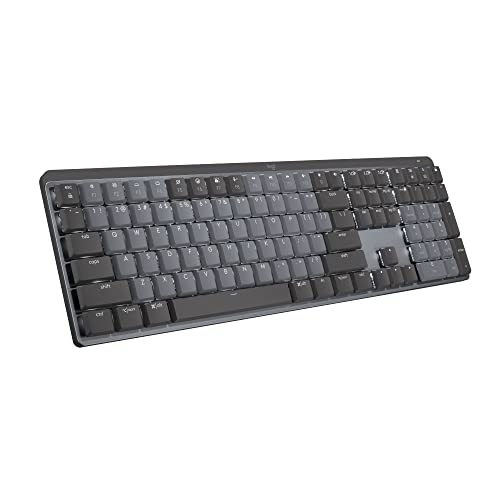
The Logitech MX Mechanical Wireless Illuminated is a full-size keyboard for office users who want a tactile bump in a low-profile design. Logitech describes its switches as “Tactile Quiet,” intended to provide feedback with less noise, but the published information includes no sound measurement. Its Bluetooth Low Energy connection can pair with up to three devices, and an included Logi Bolt receiver is also listed for wireless use.
Reasons to buy:
- Full-size layout keeps a dedicated number pad for spreadsheets and frequent numeric entry.
- Low-profile tactile switches offer a defined bump, unlike the KN85’s listed linear switches.
- Smart backlighting adjusts to changing light and turns on when hands approach, according to the listing.
Reasons to avoid:
- Its full-size footprint may take more desk space than a compact 75% keyboard.
- Logitech lists battery life of up to 15 days with a full charge, or up to 10 months with backlighting off; actual time depends on use.
Skip it if you want a compact layout, hot-swappable switches, or a keyboard with specified 2.4GHz connectivity.
How to Choose the Best Quiet Mechanical Keyboard for Office
Switch feel and sound
Switch type changes both the typing feel and the sound you hear. The Kisnt KN85 uses listed linear switches, which move without a tactile bump, while the Logitech MX Mechanical Wireless Illuminated uses tactile quiet switches with a bump. Choose based on whether you value a smooth press or a physical feedback point. Neither listing provides a decibel rating, so “quiet” does not mean silent, and the sound may still be noticeable in a quiet office.
Look for the exact switch type rather than relying on broad labels such as mechanical or quiet. If your workplace has strict noise expectations, check the return terms and consider whether your colleagues sit nearby. The published details do not establish how either keyboard sounds in every room or on every desk.
Layout and desk space
A full-size keyboard includes a number pad, which can help with frequent spreadsheet work, accounting, and data entry. It also takes more room than a compact layout. The KN85’s 75% design keeps the function row and arrow keys but omits the number pad; the Logitech is described as full-size. Measure available desk space and consider whether removing the number pad would disrupt your routine.
For other desk equipment, see our guides to USB-C docks for two laptops and webcams for home office calls. Those choices address different needs, but desk space and device switching can affect how your keyboard setup works day to day.
Connection options and device switching
Choose a connection that matches your computer and work habits. The KN85 lists USB-C, 2.4GHz wireless, and Bluetooth 5.0 with three Bluetooth channels. Its listing says it can switch between Windows and Mac, and mentions use with laptops, tablets, smartphones, and gaming consoles, but check the specific device and operating system before purchase. Bluetooth setup instructions specify Windows 8 or later and Bluetooth 4.0–5.3.
The Logitech pairs with up to three devices over Bluetooth Low Energy or the included Logi Bolt receiver, according to its product information. If you move between a desktop and laptop, check how the keyboard switches connections and whether your computer supports the chosen method. The listing does not establish that every feature works identically across all operating systems.
Battery, backlighting, and software
Wireless convenience depends on charging and lighting preferences. The KN85 has a listed 4,000mAh rechargeable battery, and its instructions say animated RGB effects use more power than static lighting. It can be used in wired mode while charging, according to the listing. Logitech specifies up to 15 days per charge with backlighting, or up to 10 months with the backlight off; these are manufacturer claims, not guaranteed results for every setup.
Software matters if you plan to remap keys or customize shortcuts. The KN85 driver is listed for Windows only and wired or 2.4GHz mode. Logitech’s Logi Options+ supports customization such as Fn keys and backlighting effects, with Flow cross-computer control also listed. Check software support for your operating system before relying on a feature for daily work.
How We Compared
This comparison uses the published product specifications and design details, including layout, switch type, connection methods, lighting, software, and stated battery claims. Product-specific statements are attributed to the listings where appropriate. The supplied material does not include customer feedback or measured keyboard noise, so this guide does not treat quietness claims as independently verified results.
Frequently Asked Questions
Are these keyboards silent?
No. The Logitech listing describes its tactile switches as quiet, and the KN85 listing describes a softer, less clacky sound. Neither product data set gives a noise measurement or claims silent operation. A mechanical keyboard can still be audible, especially in a quiet shared office.
Which keyboard is better for spreadsheet work?
The Logitech MX Mechanical Wireless Illuminated is the more direct fit if you use a dedicated number pad because it has a full-size layout. The KN85 omits the number pad, so frequent numeric entry may take longer or require a separate keypad.
Can I connect either keyboard to more than one device?
Both listings describe multi-device use. The KN85 supports three Bluetooth channels and also offers USB-C and 2.4GHz connections. The Logitech pairs with up to three devices through Bluetooth Low Energy or its included Logi Bolt receiver. Confirm your device supports the connection method you plan to use.
Can I change the switches on both keyboards?
The KN85 is listed as hot-swappable and compatible with 3-pin and 5-pin switches. The supplied Logitech details do not state that its switches are hot-swappable, so do not assume they can be replaced without checking with the manufacturer.
Which should I choose for a small office desk?
The KN85’s 75% layout may suit a compact desk because it removes the number pad while keeping the function row and arrow keys. The Logitech’s full-size layout may be preferable if the number pad matters more than desk space. Check the listed KN85 dimensions against your desk before buying.



Write Your Review
No reviews yet. Be the first to share your experience!