

A dock can connect your ROG Ally to a larger screen, wired network, and accessories, but port counts alone do not tell you whether it fits your setup. This guide compares display refresh rates, charging claims, stand and cooling designs, and handheld compatibility to help you choose the right ROG Ally dock for your gaming space.

Pros
- Three USB-A 3.0 ports
- Gigabit Ethernet
- HDMI 2.1 output
Cons
- Dock firmware update recommended to avoid HDMI mirroring issues
- Who should skip it: users unwilling to update firmware

Pros
- HDMI supports up to 4K at 60Hz
- Gigabit Ethernet included
- Two 10Gbps USB ports
- Foldable adjustable stand
Cons
- Not compatible with Switch 2
- Who should skip it: Switch 2 owners

Pros
- Six USB ports, including three USB 3.0
- HDMI 2.0 output up to 4K at 60Hz
- Gigabit Ethernet port
- Dual fans can be switched off
Cons
- Who should skip it: Switch users needing unrestricted USB data
Pros
- HDMI output supports up to 4K at 120Hz
- Three USB-A 3.0 ports
- Gigabit Ethernet connection
- Supports up to 100W PD charging
Cons
- 100W charger recommended for ROG Ally Turbo Mode
- Who should skip it: ROG XBOX Ally owners
The Best ROG Ally Docks by Use Case
Best for High-Refresh 4K Displays: iVANKY 8-in-1 Steam Deck Dock for ASUS ROG Ally
The iVANKY 8-in-1 Steam Deck Dock for ASUS ROG Ally suits a setup where HDMI refresh-rate support matters more than card-reader access or a built-in stand. Its listing specifies HDMI 2.1 output up to 4K at 144Hz, alongside gigabit Ethernet and three USB-A 3.0 ports. The listing also says to update the dock firmware to help avoid HDMI mirroring issues, so check the manufacturer’s instructions before relying on extended-display behavior.
Reasons to buy:
- HDMI 2.1 output is specified for 4K at up to 144Hz, useful with a compatible high-refresh monitor.
- Three USB-A 3.0 ports and gigabit Ethernet cover common desk peripherals and wired networking.
- The listing specifies up to 100W power delivery and says ROG Ally charging reaches 65W.
Reasons to avoid:
- It has no listed SD or microSD card reader, unlike the UGREEN option below.
- The 30W Turbo Mode compatibility note calls for ROG Ally BIOS version 323, and the listing recommends a dock firmware update for display use. Confirm current instructions for your device.
Skip it if you need an adjustable stand, memory-card slots, or a dock explicitly listed for ROG Xbox Ally models.
Best for Card Readers and an Adjustable Stand: UGREEN Steam Deck Dock 9-in-1 USB C Docking
The UGREEN Steam Deck Dock 9-in-1 USB C Docking is a strong fit for players who want a foldable stand and card-reader slots in one dock. Its listing specifies HDMI output up to 4K at 60Hz, SD and TF card slots, and a stand made from two foldable panels. That adjustable design may suit a desk where you want to position the handheld while leaving its heat outlet less obstructed, as the listing claims.
Reasons to buy:
- SD and TF slots add direct card access for compatible media and storage workflows.
- Two USB 3.2 Gen 2 ports, one USB-A and one USB-C, are specified for data rates up to 10Gbps.
- The listing names ROG Ally, ROG Ally X, ROG Xbox Ally, Legion Go, and MSI Claw among compatible devices.
Reasons to avoid:
- Its HDMI output tops out at 4K at 60Hz, below the listed 120Hz or 144Hz 4K modes of some alternatives.
- Two additional USB-A ports are USB 2.0, so reserve the faster ports for devices that benefit from higher data rates.
Skip it if 4K refresh rates above 60Hz are central to your monitor setup, or if you need Switch 2 compatibility, which its listing excludes.
Best for Built-In Cooling and Many Accessories: YCBUENO 12-in-1 Steam Deck Dock for ROG Ally X
The YCBUENO 12-in-1 Steam Deck Dock for ROG Ally X is aimed at a stationary setup with several USB devices and a preference for built-in fans. The listing specifies two 5cm RGB cooling fans, six USB ports, gigabit Ethernet, and HDMI 2.0 output up to 4K at 60Hz. It also lists a rear switch to turn off the fans and RGB lighting, giving you control over those features when you do not want them running.
Reasons to buy:
- Three USB 3.0 and three USB 2.0 ports accommodate a mix of data devices and lower-bandwidth peripherals.
- The listing includes two fans and a fan-and-light switch, which may appeal to players who want active airflow at the dock.
- The stated compatibility list includes ROG Ally and Ally X, plus several other handhelds and Switch models.
Reasons to avoid:
- The HDMI specification is 4K at 60Hz, not a high-refresh 4K mode.
- The claimed cooling benefits come from the product listing; fan noise and real-world temperature effects are not specified in the published information.
Skip it if you prefer a compact, fan-free dock or need evidence about fan noise before choosing a cooling accessory.
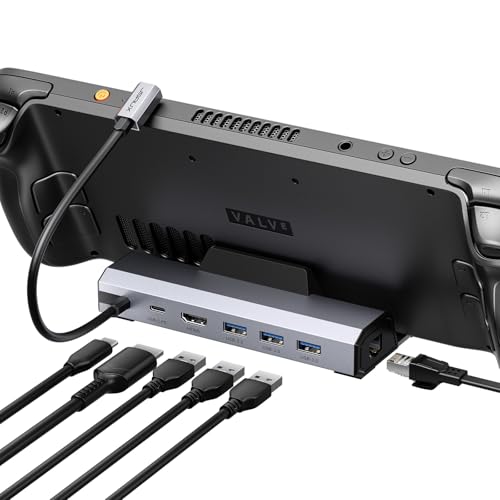
Best for 4K at 120Hz with a Simple Port Set: JSAUX 6-in-1 Docking Station for Steam Deck/ROG
The JSAUX 6-in-1 Docking Station for Steam Deck/ROG fits a setup that needs a high-refresh HDMI connection, wired networking, and a few USB-A accessories without a larger port selection. Its listing specifies HDMI 2.1 output up to 4K at 120Hz, gigabit Ethernet, and three USB 3.0 ports. The listing says it supports ROG Ally 30W Turbo Mode and recommends a 100W charger for that use.
Reasons to buy:
- 4K at up to 120Hz HDMI output suits compatible displays when higher refresh rates matter.
- Three USB 3.0 ports provide room for common wired peripherals.
- The compatibility list includes ROG Ally and Ally X, Steam Deck, Legion Go and Go S, and MSI Claw.
Reasons to avoid:
- It does not list SD or TF card slots, and has fewer total ports than the YCBUENO dock.
- The listing explicitly excludes ROG Xbox Ally and ROG Xbox Ally X, so verify your exact handheld model before buying.
Skip it if you own a ROG Xbox Ally model or need a card reader, a stand, or built-in cooling fans.
How to Choose the Best ROG Ally Dock
Match HDMI output to your screen and games
Check both resolution and refresh rate in the dock listing, then compare them with the monitor or TV input you plan to use. These docks list different ceilings: the iVANKY model specifies 4K at 144Hz, JSAUX lists 4K at 120Hz, and UGREEN and YCBUENO list 4K at 60Hz. A higher listed ceiling only helps if your display, cable, handheld, and game can use the mode; it does not establish image quality or guarantee that a game will run at that resolution and refresh rate.
If you mainly play on a 1080p display, check its supported refresh rate and the dock’s listed output modes rather than paying attention only to the 4K label. UGREEN lists 1080p at 120Hz and 240Hz among its supported modes, while JSAUX and iVANKY emphasize high-refresh 4K output in the published descriptions. Confirm mode support with the display and handheld documentation if a specific resolution and refresh rate is essential.
Check power delivery, charger, and Turbo Mode notes
All four listings specify up to 100W power delivery, but that figure describes the dock’s stated maximum, not necessarily the power reaching the handheld. The iVANKY and UGREEN listings say ROG Ally reaches 65W charging, and both note a BIOS requirement or Turbo Mode support details. JSAUX says a 100W charger is recommended for ROG Ally 30W Turbo Mode. Check the dock’s instructions and your handheld’s charging requirements, and verify whether a power adapter is included because the published product details do not establish that for every model.
Power delivery also does not mean every USB-C port provides the same charging or data performance. Review which port accepts power, which connects to the handheld, and what each additional USB-C port supports. This matters especially if you want to charge a handheld while attaching storage or other USB-C devices.
Count the ports you will use and check their speeds
Count actual connections rather than relying on the total port label. YCBUENO lists six USB ports, split between three USB 3.0 and three USB 2.0; UGREEN combines two USB 3.2 Gen 2 ports with two USB 2.0 ports. iVANKY and JSAUX each list three USB-A 3.0 ports. Faster ports are more relevant for storage and file transfers, while keyboard and mouse receivers usually need less bandwidth.
For wired play or large downloads, each of these four listings specifies gigabit Ethernet, also described as 1Gbps Ethernet by iVANKY. Actual internet speeds depend on your service, router, network, and game servers. If you move files using cards, UGREEN’s SD and TF slots are a distinctive advantage; the other three product descriptions do not list card readers.
Verify exact handheld compatibility and physical setup
Dock compatibility can vary across closely named handheld models. JSAUX explicitly says it is not for ROG Xbox Ally or ROG Xbox Ally X, while UGREEN lists ROG Xbox Ally compatibility and excludes Switch 2. Check the exact model name against the dock’s current listing before ordering, especially if you own a newer device or plan to share the dock across handhelds.
Consider where the handheld rests and how you route cables. UGREEN uses a foldable stand, while YCBUENO describes a dedicated slot for devices up to 27mm thick and also says other USB-C devices can connect by the included cable. iVANKY mentions joystick caps, and YCBUENO lists joystick caps plus a Type-C extender. Check the listed product page for the precise included accessories and whether the dock’s position works with your device and case.
How We Compared
This comparison uses the published product listings, including stated HDMI modes, USB port types and speeds, Ethernet, charging claims, stand or cooling details, and named compatibility. We also considered listed caveats, such as firmware and BIOS notes, Switch 2 support, and exclusions for ROG Xbox Ally models. The published data includes no customer review text, so the guide does not infer user consensus or long-term reliability.
Frequently Asked Questions
Can I use any USB-C dock with an ROG Ally?
Do not assume every USB-C dock supports the same display output, charging, or handheld fit. Check the listing for your exact ROG Ally model, HDMI specifications, power delivery, and Turbo Mode notes. Also confirm whether the dock connects directly to the handheld or uses a separate cable.
Will a dock make games run at 4K and 120Hz?
No dock listing alone can promise that result. The display mode depends on the handheld, game, display, and connection, as well as the dock’s supported output. JSAUX lists HDMI up to 4K at 120Hz, but that is an output specification, not a guarantee that a game will render at 4K and 120 frames per second.
Do these docks include a power adapter?
The published details describe power delivery ratings but do not confirm that a wall charger is included with each dock. Check the current product listing’s package contents before purchasing. If you plan to use Turbo Mode, follow the dock’s stated charger recommendation and the handheld maker’s charging guidance.
Is a dock with cooling fans necessary?
Not necessarily. YCBUENO is the only option here whose listing specifies built-in fans, but the published information does not establish how much they change temperatures or performance in a particular setup. Choose it if the fan feature and extra ports fit your needs, and consider whether you want fan noise and RGB lighting in your play area.
Which dock makes sense for several USB accessories?
YCBUENO lists six USB ports, while UGREEN lists four, with two faster USB 3.2 Gen 2 connections and two USB 2.0 connections. iVANKY and JSAUX each list three USB-A 3.0 ports. Match the port types and stated speeds to your devices, and remember that a port count does not say whether every port can support every accessory at once.




Write Your Review
No reviews yet. Be the first to share your experience!