

Choosing a Steam Deck dock means deciding which connections matter more than a long feature list. Some hubs prioritize extra USB ports or wired networking, while others add high-refresh-rate video, storage expansion, or a stand for desk play.
This guide compares options for different setups, including dual-monitor desktop use, broad handheld compatibility, compact connections, and onboard SSD expansion. Check your device model, case clearance, charger, and display before choosing.

Pros
- Dual 4K 60Hz output in desktop mode
- Three 5Gbps USB ports
- Gigabit Ethernet connection
- Compact vertical port layout
Cons
- Handheld mode supports only one video output
- Not recommended with a Steam Deck case
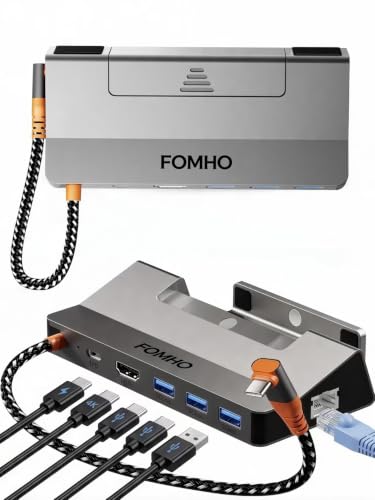
Pros
- HDMI output up to 4K at 60Hz
- Three USB 3.0 ports
- Gigabit Ethernet connection
- Foldable magnetic base
Cons
- Who should skip it: users needing more than three USB 3.0 ports

Pros
- Up to 4TB NVMe SSD expansion
- Gigabit Ethernet
- Optical audio output
- Adjustable stand with cooling fan
Cons
- Optical audio requires compatible equipment
- Who should skip it: users who do not need docked connections or storage expansion

Pros
- Three USB-A 3.0 ports
- Gigabit Ethernet
- HDMI 2.1 output
Cons
- Dock firmware update recommended to avoid HDMI mirroring issues
- Who should skip it: users unwilling to update firmware

Pros
- 4K at 120Hz HDMI output
- Gigabit Ethernet
- Three USB 3.0 ports
- Wide handheld compatibility
Cons
- 100W charging requires a 100W charger
- Skip if you need more than three USB ports

Pros
- HDMI output supports 4K at 60Hz
- Three USB-A ports
- USB-C power delivery up to 100W
- Compatible with several listed handhelds
Cons
- Ethernet limited to 100Mbps
- Not compatible with ROG Ally X
- Cases with kickstands may not fit

Pros
- HDMI supports 4K at 60Hz
- Gigabit Ethernet port
- Aluminum stand with silicone pads
- 18-month warranty
Cons
- Skip if you need more than two USB-A ports

Pros
- Three 10Gbps USB ports
- Gigabit Ethernet
- Compact, lightweight design
- Up to 4K at 144Hz output
Cons
- Charger and charging cable sold separately
- Not compatible with Nintendo Switch
- Skip if you need included charging accessories or Switch support

Pros
- 4K at 60Hz HDMI output
- Gigabit Ethernet port
- Three USB data ports
- 100W PD-IN port
Cons
- Not compatible with ROG Ally X
- USB-C data port does not support screen mirroring
- Skip if you need USB-C video output

Pros
- Four types of connectivity in one dock
- Adjustable stand design
- Listed compatibility includes Steam Deck, ROG Ally, and Legion Go
Cons
- Power adapter and input cable not included
- Skip if you need ROG Ally 30W turbo without a 100W-plus PD charger
The Best Steam Deck Docks by Use Case
Best for Dual Monitors: Steam Deck Dock Dual Monitor
The QUUGE Steam Deck Dock Dual Monitor stands out for a desktop setup that needs both HDMI and DisplayPort. Its listing specifies simultaneous output to two 4K 60Hz monitors in desktop mode, alongside Gigabit Ethernet and USB-A and USB-C data ports. The listing says handheld mode supports only one video output, so this dual-display use case depends on desktop mode.
Reasons to buy:
- HDMI 2.0 and DisplayPort 1.4 support simultaneous dual-display output in desktop mode.
- Gigabit Ethernet and three 5Gbps data ports support wired networking and peripherals.
- Up to 100W PD input is specified, while the Steam Deck itself has a stated maximum charging speed of 45W.
Reasons to avoid:
- Two-screen output is limited to desktop mode; handheld mode supports one video output.
- The listing advises against using the dock with both a protective case and the device.
Skip it if you need two external displays while using handheld mode or rely on a case that stays on the device.
Best for Built-In Storage: DOCKCASE & CHIZHA Docking Station for Steam Deck
The chizha DOCKCASE & CHIZHA Docking Station for Steam Deck combines a dock with an M.2 NVMe SSD slot, making it a distinct option for players who want a larger game library at their desk. The listing specifies support for 2230, 2242, and 2280 NVMe drives up to 4TB, plus HDMI output up to 4K at 120Hz. It also includes optical audio output, Gigabit Ethernet, and a touchscreen for viewing device and fan information.
Reasons to buy:
- M.2 slot supports three listed NVMe drive sizes and up to 4TB capacity.
- HDMI output is specified up to 4K at 120Hz, subject to the connected device and display supporting the mode.
- Optical audio, adjustable stand, touchscreen, and fan add features beyond basic hub connectivity.
Reasons to avoid:
- The listing does not say an SSD is included, so treat the drive as a separate purchase unless the seller confirms otherwise.
- Its extra storage, cooling, and display features may be unnecessary if you only need HDMI and USB ports.
Skip it if you want a simple, compact dock and do not need an M.2 expansion slot or optical audio connection.
Best for Multiple Handhelds: JSAUX 6-in-1 Docking Station for ROG Xbox Ally
The JSAUX JSAUX 6-in-1 Docking Station for ROG Xbox Ally is suited to households or desks shared by several handheld PCs. Its listing names Steam Deck LCD and OLED, ROG Ally models, Legion Go variants, MSI Claw, and additional devices, while the widened and raised base is described as accommodating protruding grips. HDMI 2.1 output is specified up to 4K at 120Hz, with three USB 3.0 ports and Gigabit Ethernet.
Reasons to buy:
- Broad listed compatibility covers handhelds using SteamOS and Windows, including Steam Deck LCD and OLED.
- Three USB 3.0 ports provide connections for peripherals or external storage.
- Gigabit Ethernet and HDMI 2.1 output suit a wired, TV-based setup.
Reasons to avoid:
- The advertised 4K 120Hz output does not mean every handheld game can render at that resolution and frame rate.
- The listing recommends pairing the dock with a 100W charger for best results; a charger is not stated as included.
Skip it if you only need a basic Steam Deck connection and would rather avoid paying for compatibility with other handhelds.
Best for a Stand and Fast USB Data: BENFEI Steam Deck Dock, Docking Station for Steam
The BENFEI BENFEI Steam Deck Dock, Docking Station for Steam combines an all-aluminum stand with a 6-in-1 hub. The listing specifies 4K at 60Hz over HDMI, Gigabit Ethernet, two USB 3.0 ports, and one USB-C data port, each rated for up to 5Gbps. Its stand is described as holding the Steam Deck at an angle, with silicone pads and cooling vents left clear.
Reasons to buy:
- Integrated stand gives the handheld a fixed viewing position on a desk.
- Three 5Gbps data connections offer useful flexibility for storage and peripherals.
- Gigabit Ethernet and 100W PD input cover wired networking and pass-through charging.
Reasons to avoid:
- The listed video output tops out at 4K 60Hz, rather than the higher refresh rates offered by some alternatives.
- The listing describes the dock as designed for Steam Deck; verify compatibility if you plan to use another handheld.
Skip it if your main priority is HDMI 2.1 output at 120Hz or above.
Best for High-Speed USB Transfers: Steam Deck Dock, WAVLINK Gaming Dock, HDMI 2.1
The WAVLINK Steam Deck Dock, WAVLINK Gaming Dock, HDMI 2.1 pairs HDMI 2.1 output with three USB 3.2 Gen 2 ports, each listed at up to 10Gbps. That makes it a useful match for players who regularly connect fast external storage as well as a display. Its listing specifies Gigabit Ethernet and 100W power input with up to 85W output, and notes that the charger and charging cable are not included.
Reasons to buy:
- Two USB-A and one USB-C data port are specified at up to 10Gbps.
- HDMI 2.1 output is listed up to 4K at 144Hz under DP 1.4 and DSC conditions.
- Compact listed dimensions and a stated weight of 5.1 ounces may suit portable setups.
Reasons to avoid:
- Power adapter and charging cable are not included, according to the listing.
- The 144Hz display mode depends on DP 1.4 and DSC support; verify that the handheld and monitor support the required signal path.
Skip it if you need a dock with a built-in stand, or want an included power adapter.
Also Considered
The FOMHO FOMHO Aluminum Alloy Dock Station for Steam Deck could suit portable setups that value a magnetic foldable base and broad device compatibility, but its listing specifies 4K at 60Hz rather than higher refresh output.
The iVANKY iVANKY 8-in-1 Steam Deck Dock for ASUS ROG Ally offers HDMI 2.1 up to 4K at 144Hz and three USB-A ports, though its listing calls out firmware and BIOS steps for particular display and ROG Ally features.
The vienon Steam Deck Dock, Docking Station for Steam may fit a basic setup that needs HDMI and charging, but its Ethernet connection is listed at 100Mbps, below the Gigabit ports on several alternatives.
The Anker Anker Steam Deck Dock, 6-in-1 4K@60Hz HDMI Docking offers a straightforward set of HDMI, Ethernet, and USB ports, but its listing explicitly excludes ROG Ally X and limits HDMI output to 4K at 60Hz.
The Baseus Steam Deck Dock, Baseus 6-in-1 Docking Station includes an adjustable stand and three USB-A ports. Its listing says the power adapter and input cable are not included, so check whether you already own suitable charging equipment.
How to Choose the Best Steam Deck Dock
Match video output to your display and task
For a standard TV or monitor setup, 4K at 60Hz may be enough. If you have a high-refresh-rate display, a dock listing HDMI 2.1 and a higher refresh limit, such as the WAVLINK or JSAUX, may be worth considering. However, a dock’s maximum output is not a promise that the Steam Deck can run every game at that resolution and refresh rate. Confirm the display input, cable, handheld capabilities, and any required display stream compression support before buying.
Count the ports you will use at once
List your usual connections: controller receiver, keyboard, mouse, external drive, wired network, and display. The number of ports matters less than their type and speed. For example, the WAVLINK lists three 10Gbps data ports, while the BENFEI offers three data ports at up to 5Gbps. The vienon dock’s two USB 2.0 ports are slower than its USB 3.0 port, so they are more suitable for lower-bandwidth peripherals than frequent large file transfers.
Check charging input and your power adapter
Many docks list 100W PD input, but that figure describes the dock’s power input capability, not the Steam Deck’s charging rate. The published listings state a 45W maximum charging speed for Steam Deck. The WAVLINK specifies up to 85W output, while other listings describe 100W PD support; use the product’s specific details rather than assuming every dock passes the full input wattage to the handheld. Check whether a charger and cable are included, and whether your existing adapter meets the dock’s stated needs.
Verify exact handheld and case compatibility
Compatibility can differ between models in the same product family. The Anker listing excludes ROG Ally X, while vienon excludes ROG Ally X, AYANEO, and Switch. JSAUX names a wide range of SteamOS and Windows handhelds and describes a raised base for protruding grips. Check the full model name and case thickness in the listing, especially if you plan to leave a protective case attached. The QUUGE listing advises against using both a case and the dock.
Decide whether a stand or expansion feature matters
A stand keeps the handheld positioned on a desk, but its shape can affect fit with cases and grips. BENFEI lists an all-aluminum stand, and Baseus lists an adjustable stand designed to accommodate a protective case. For a large game library, the chizha dock’s M.2 NVMe slot is a more unusual addition; confirm the supported drive size and capacity, and remember that the listing does not state that an SSD is included. Dual-monitor users should also note that QUUGE specifies simultaneous displays in desktop mode only.
How We Compared
We compared the published product specifications and descriptions, focusing on display output, port type and speed, Ethernet, charging details, device compatibility, stand design, and storage or audio extras. The published product data includes ratings but no written customer feedback, so this guide does not infer recurring owner experiences from those ratings. Where a listing names a limitation or a setup condition, such as a missing charger or a mode-specific display feature, that distinction is included.
Frequently Asked Questions
Will any USB-C dock work with a Steam Deck?
No. A dock needs the right USB-C video and power features, and its physical design must fit the device. Check the listing for Steam Deck compatibility, display output, PD charging, and any case restrictions. USB-C ports can have different data and video capabilities, so do not assume that every port supports the same functions.
Does a dock make Steam Deck games run at 4K or 120Hz?
A dock can provide a video output mode supported by the dock, handheld, and display, but it does not add graphics performance to the handheld. The 4K 120Hz or 144Hz figures in listings describe supported output conditions, not guaranteed game frame rates. Check the game, display, handheld, and connection requirements together.
Can I connect two monitors to a Steam Deck dock?
The QUUGE dock lists both HDMI and DisplayPort and specifies simultaneous 4K 60Hz output on two displays in desktop mode. It also states that handheld mode supports only one video output. Other docks in this guide list a single HDMI output, so check the port layout and mode limitations before planning a multi-monitor desk.
Do I need a Gigabit Ethernet port?
Wired Ethernet can provide a direct network connection for online play or downloads, but the useful speed depends on your router, internet plan, and network conditions. Several options list Gigabit Ethernet; vienon specifies 100Mbps instead. If wired speed matters, compare that exact port rating rather than relying on a general Ethernet label.
Will a dock charge the Steam Deck at 100W?
Not at 100W. The published listings state that Steam Deck’s maximum charging speed is 45W. A dock’s 100W PD figure refers to its stated power delivery input or capability, and the power adapter, cable, and dock design affect what reaches the device. Follow the dock’s listed charging guidance and verify what power equipment is included.
Can I use my protective case while the Steam Deck is docked?
It depends on the dock and case shape. Some products describe wider or adjustable stands, but that does not confirm fit with every case. QUUGE advises against using both a case and its dock, and other listings specify case thickness or kickstand restrictions. Check the dock’s fit notes and your case dimensions before ordering.



Write Your Review
No reviews yet. Be the first to share your experience!