

Choosing the best laptop for kids means matching the computer to school requirements, not picking the longest feature list. These two HP 14-inch laptops use different operating systems: one runs ChromeOS, while the other runs Windows 11 Pro. That difference affects which apps children can use, how files are managed, and what families should check before purchase.
This comparison explains what the listed processor, memory, display, storage, and software details can and cannot tell you. Check your child’s school app requirements first, especially if classes require Windows programs or a school-managed Chromebook.

Pros
- Quad-core processor handles web tasks and video calls
- Up to 14 hours of rated battery life
- Versatile connectivity with HDMI, USB-A, and USB-C
Cons
- Modest 64GB eMMC storage limits local file capacity
- 4GB RAM constrains heavy multitasking performance
- Power users and gamers should skip this configuration

Pros
- Lightweight build under three and a half pounds
- Includes 500GB external hard drive for file backup
- Comes with mouse, earbuds, and essential cables
- Preloaded with Windows 11 Pro security tools
Cons
- Base internal storage capacity is limited to 128GB
- Four gigabytes of system memory limits heavy multitasking
- Who should skip: Power users needing intense productivity performance
The Best Laptops for Kids by Use Case
The published information supports two distinct use cases, not four to six separate product picks. Both machines have 14-inch HD displays and 4GB of memory, but their operating systems, processors, storage descriptions, and bundled software differ. The right fit depends chiefly on the programs the child needs and whether the family prefers ChromeOS or Windows.
Best for Browser-Based Schoolwork: HP 14″ HD Chromebook Laptop for Students
The HP 14″ HD Chromebook Laptop for Students suits families whose schoolwork runs in ChromeOS-compatible web apps and who want a Chromebook rather than a Windows computer. Its listed Intel Celeron N4120 is a four-core processor, paired with 4GB RAM and 64GB eMMC storage. The product listing also states up to 14 hours of battery life, but actual runtime depends on use and settings.
Reasons to buy:
- ChromeOS may fit school workflows built around browser-based tools and Google services, provided the school supports this type of device.
- The listing identifies HDMI, USB-A, and USB-C ports, useful when checking whether a classroom display or existing accessory can connect.
- The listed 64GB eMMC storage and stated battery-life claim give buyers concrete details to compare against school needs.
Reasons to avoid:
- Its 4GB RAM and 64GB eMMC storage are modest listed amounts, so check whether required apps, downloaded files, and offline work fit.
- Do not assume the USB-C port supports a particular display output, charging method, or data speed; confirm the required capability with the seller or documentation.
Who should skip it: Families whose school requires Windows-only software or more local storage should compare Windows models and confirm app compatibility before choosing.
See our guide to Chromebooks for students for more context on ChromeOS school use. A Chromebook can be a straightforward fit for web-based assignments, but the listing alone does not establish compatibility with a particular school’s accounts, learning platform, or device-management rules.
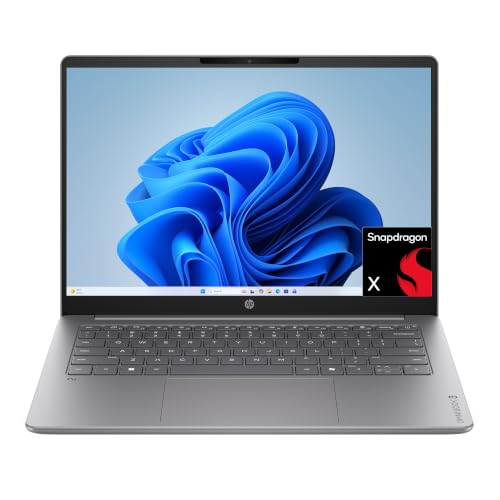
Best for Windows Software and Bundled Storage: HP 14″ Laptop Computer for 2026 Student Business
The HP 14″ Laptop Computer for 2026 Student Business is the Windows option in this comparison. Its listing specifies an Intel N150 quad-core processor, 4GB DDR5 RAM, and 128GB UFS storage, plus a separate 500GB external drive. The listing also describes Windows 11 Pro, a 14-inch HD anti-glare display, and an included Office suite, making it worth considering when Windows software is needed. Verify the software license and exact included items before purchase.
Reasons to buy:
- Windows 11 Pro may suit school or home tasks that need Windows applications, subject to each program’s requirements.
- The listing separates 128GB of built-in UFS storage from the bundled 500GB external drive, giving families a stated option for storing additional files.
- The anti-glare HD display and listed 720p camera with dual-array microphones may be useful for desk work and online classes.
Reasons to avoid:
- Memory is listed as 4GB, so check the requirements of the child’s apps and how many programs are expected to run at once.
- The external drive is separate from built-in storage and may need to be carried and connected when its files are needed.
Who should skip it: Buyers who want ChromeOS, or who need more than 4GB RAM for required software, should compare other options and check application requirements.
The listing names a six-in-one accessory bundle, including a wireless mouse, earbuds, USB extension cord, HDMI cable, mouse pad, and external drive. Confirm bundle contents and the terms for the stated Office inclusion, since the listing does not provide enough detail here to establish license conditions or long-term support.
Also Considered
Both listed products appear in the main picks, so there are no additional models to list in this section; families can also browse laptops for students for other options.
How to Choose the Best Laptop for Kids
Before comparing processor names or bundled extras, ask the school which operating system and apps it supports. Then compare memory, display, storage, connection needs, and the support details that matter for your child’s actual assignments. Product listings often omit information that can change whether a computer suits a particular classroom.
Start with school app and operating system requirements
ChromeOS and Windows are not interchangeable. A browser-based class portal may work on either system, but a required desktop application may be limited to Windows or have features that differ by platform. Ask the teacher or school IT staff for a list of required programs, account rules, and device restrictions before buying.
The HP Chromebook is the ChromeOS choice in this guide; the other HP model lists Windows 11 Pro. Do not treat a mention of Zoom or Office in a product title as proof that every school workflow is supported. Check the software publisher’s current requirements, whether installation is needed, and whether the school provides a license or account.
Read processor and memory details together
A processor name describes one part of a computer, not the complete experience. The Chromebook lists an Intel Celeron N4120 with four cores, while the Windows laptop lists an Intel N150 with four cores. Those published details allow a basic model comparison, but they do not establish comparative speed for a child’s specific apps.
Both listings specify 4GB of memory. That may be an important limit for workloads involving several open applications or demanding software, so compare the memory requirement for the school’s programs rather than assuming that a newer processor name removes the constraint. Listings do not state whether memory can be upgraded; ask the seller or consult model documentation if future expansion matters.
Check storage type, usable space, and file habits
The Chromebook listing specifies 64GB of eMMC storage. The Windows listing describes 128GB of built-in UFS storage and a separate 500GB external drive. These are different arrangements: an external drive adds storage that must be connected when needed, while built-in storage remains part of the laptop.
Think about whether the child will save large video projects, download class materials for offline use, or mainly work with files stored in school or cloud accounts. Cloud storage still depends on account access and an internet connection for many tasks. Ask whether the external drive is included in the exact bundle, how it connects, and whether the school permits its use.
Match display and ports to the work setup
Both products list 14-inch HD displays. The Windows model additionally describes its screen as anti-glare, which may matter in a bright room, but the published details do not specify brightness, color coverage, or viewing angles. If a child works in a sunny space or needs particular visual features, seek those specifications rather than inferring them from screen size or the word “vibrant.”
The Chromebook listing names HDMI, USB-A, and USB-C. The Windows listing mentions a bundled HDMI cable and USB extension cord, but the published information does not enumerate the laptop’s ports. Confirm the exact port layout and supported functions if the child will connect a monitor, printer, headset, or other school equipment. A USB-C connector alone does not guarantee a particular speed or display function.
Treat battery figures and bundles as claims to verify
The Chromebook listing states 14 hours of battery life. This is a listing claim, not a guarantee for every class day: screen brightness, Wi-Fi use, video calls, and workload can affect runtime. The Windows laptop information provided does not state a battery-life figure, so families who need all-day use should seek a clear specification and consider access to charging.
Bundles can be convenient, but accessories should not outweigh core requirements. The Windows listing names several extras and an Office suite; verify exact contents, software licensing, and whether the child’s school accepts the included version. For a broader Windows comparison, see our Windows laptop guide. Families comparing Chromebook options can also review our Chromebook buying guide for general platform considerations.
How We Compared
This comparison uses the published product specifications, listed design details, operating-system information, storage descriptions, and bundled-item claims. The provided data includes no customer review feedback, so this guide does not draw conclusions from owner experiences. Where details such as battery life, accessory compatibility, or included software terms could affect a purchase, the guide identifies what buyers should verify rather than filling gaps with assumptions.
Frequently Asked Questions
Should a child use a Chromebook or a Windows laptop?
Choose based on the school’s required apps and device policies. The HP Chromebook runs ChromeOS, while the other listed HP laptop runs Windows 11 Pro. Confirm that required programs, school accounts, and any device-management rules work with the selected system before ordering.
Is 4GB of RAM enough for schoolwork?
It depends on the apps and number of tasks used at once. Both listed laptops have 4GB RAM, so compare that amount with the school’s software requirements and expected workload. The published details do not establish upgrade options.
Does the HP Chromebook really last 14 hours?
The listing claims up to 14 hours, but actual battery life varies with settings and use. Ask the seller for the conditions behind the figure and consider how much video calling, streaming, and Wi-Fi use a typical school day involves.
Does the Windows laptop have 628GB of built-in storage?
No. The listing describes 128GB of built-in UFS storage plus a separate 500GB external drive. Treat those as distinct storage locations, and confirm the drive’s inclusion and connection details for the exact product bundle.
Can either laptop connect to an external monitor?
The Chromebook listing names an HDMI port, but the published data does not fully describe display output support. The Windows listing mentions an HDMI cable in its bundle but does not specify the laptop’s port layout. Check each model’s exact port specifications and supported display connection before relying on an external monitor.
What should parents check before a child uses a laptop?
Confirm school compatibility, set up the child’s account and appropriate parental controls, and review privacy and app permissions together. Keep the device and charging accessories away from food and liquids, and follow the manufacturer’s care and charging guidance. Neither published listing provides enough information to make specific durability or safety-certification claims.




Write Your Review
No reviews yet. Be the first to share your experience!